
On this page you can see your Bucket names, IDs Regions, File Level Encryption settings, FIPS enablement and Version settings. You can update/re-authenticate your credentials, and configure your Buckets, Bucket Folders, Metadata, and Multiple Bucket Settings.
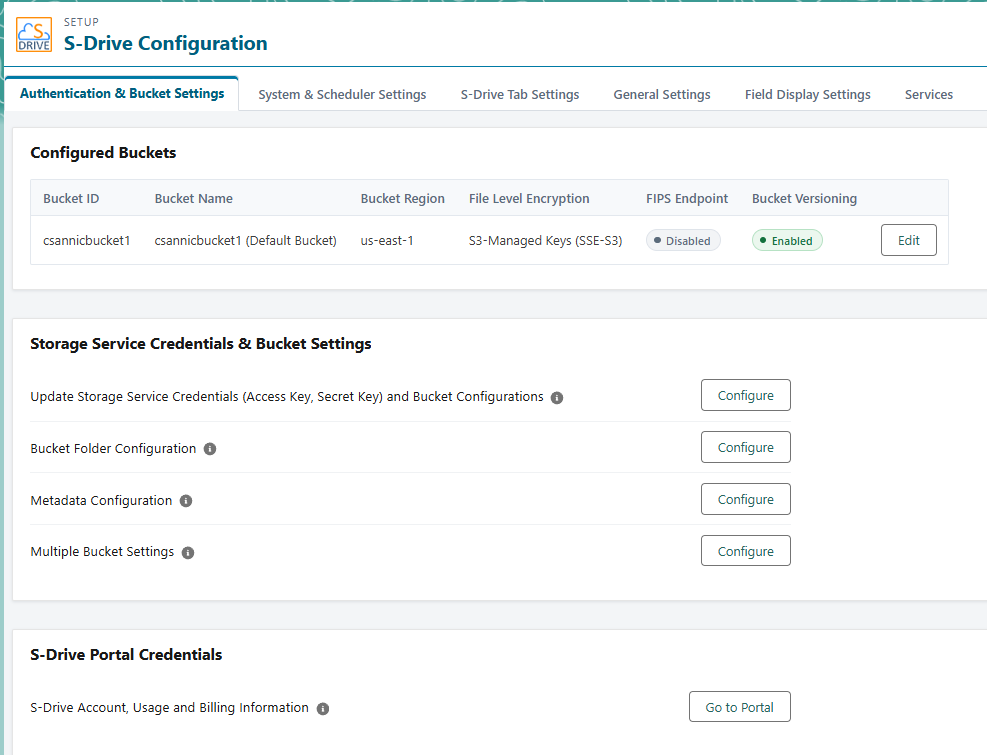
There are several features you can configure from this page.
Upload Amazon S3 Credentials (Access Key, Secret Key) and Bucket Configurations
This is where you can change your AWS credentials and manage your buckets.
Clicking Configure takes you to this page
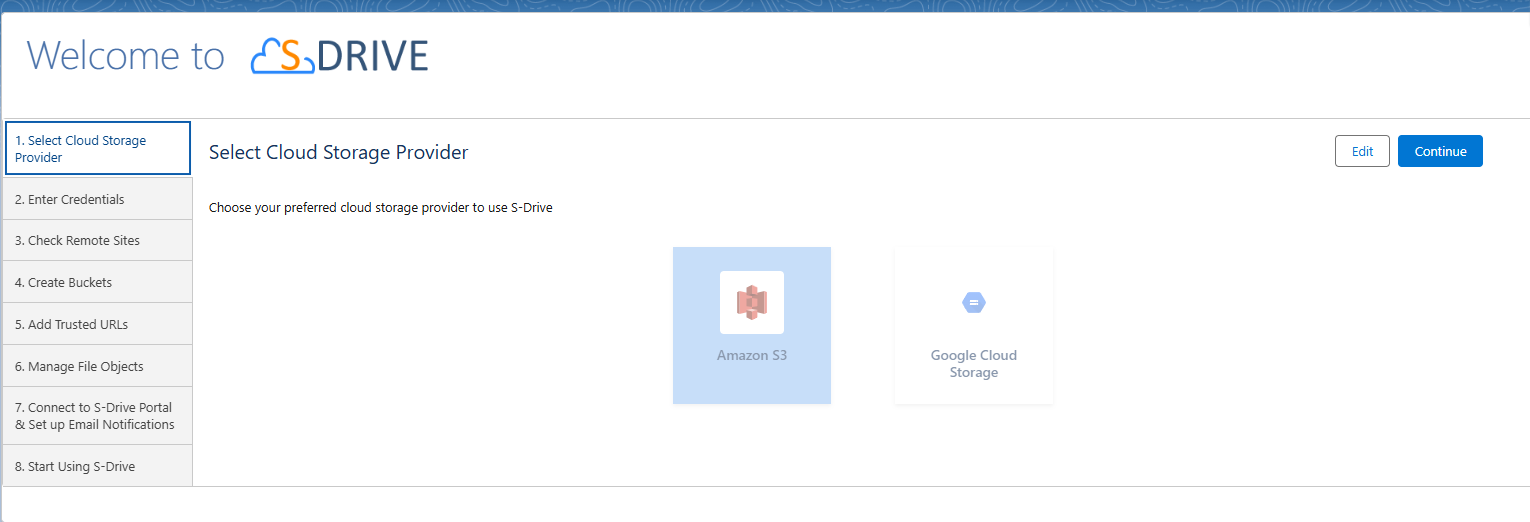
Click on Step 2 to edit your Access Key and Secret Key.
Click on Step 4 to add or manage buckets.
See Multi-Bucket Support for information about how to use multiple buckets.
Bucket Folder Configuration
Clicking the “Configure” button will take you to a page where you can configure Bucket Folders for each file object. Bucket Folders allow you to control where files are stored in your AWS bucket.
See Bucket Folders under Advanced Features for information on this feature and how to configure it.
Metadata Configuration
Clicking the “Configure” button will take you to a page where you can define metadata for each file object. Metadata is extra data stored with the file in your AWS bucket. For more information about metadata in AWS, see AWS’s Working with Metadata help page.
For information about configuring Metadata in S-Drive, see User-defined Metadata for how to configure this feature.
Multiple Bucket Settings
Clicking the “Configure” button will take you to a page where you can enable Multi-Bucket support for each object. See Multi-Bucket Support for more information.
S-Drive Account, Usage and Billing Information
You can access your S-Drive portal account for account, usage and billing information.
Configuring Encryption
When files are uploaded to S-Drive and stored in your AWS bucket, they may be encrypted depending on your configuration. There are 2 parts to configuring how files will be encrypted, described as follows:
S3 Bucket Encryption
In AWS, you can choose the encryption method for your bucket. See Setting default server-side encryption behavior for Amazon S3 buckets for more information. The options are
-
Disable (no encryption is enabled on the bucket)
-
Enable - Amazon S3 Key (SSE-S3)
-
Enable - AWS Key Management Service key (SSE-KMS).
For SSE-KMS, only AWS managed key will work with S-Drive.
S-Drive File Upload Encryption
This setting determines how files will be encrypted when uploaded. The Upload File Encryption Type does not have to match your Bucket Encryption.
The options are
-
S3-Managed Keys (SSE-S3)
-
AWS Key Management Service (SSE-KMS)
-
Use same encryption as S3 Bucket - this setting uploads files with the encryption type configured on your S3 bucket
If your bucket encryption is disabled (no encryption) and you choose “Use same encryption as S3 Bucket, your files will not be encrypted.
This table shows what encryption method is used for each combination of settings. The S-Drive File Upload Encryption Type overrides the bucket encryption unless the S-Drive setting is “use same encryption as S3 bucket)
|
Bucket Encryption ➡ S-Drive Configuration ⬇ |
Disable |
Enable/Amazon S3 Key (SSE-S3) |
Enable/AWS Key Management Service key (SSE-KMS) |
|---|---|---|---|
|
S3-Managed Keys (SSE-S3) |
SSE-S3 |
SSE-S3 |
SSE-S3 |
|
AWS Key Management Service (SSE-KMS) |
SSE-KMS |
SSE-KMS |
SSE-KMS |
|
Use same encryption as S3 Bucket |
No Encryption |
SSE-S3 |
SSE-KMS |
If you are upgrading from a previous version, check that the custom setting for this configuration has been created:
-
Go to Setup-->Custom Settings
-
Click Manage next to SDriveConfig
-
See if there is a setting for S3EncryptionType. It should be set to AES256. This is the value that corresponds to SSE-S3 and is the default value for S-Drive Configuration
-
If there is no custom setting called S3EncryptionType, create it:
-
From the page with the list of settings (after you clicked Manage), click New at the top
-
Under Name, enter S3EncryptionType
-
Under Value, enter AES256
-
-
Once this value is set, you can change it if needed by going to the S-Drive Configuration page shown above