Easily find all our Release Notes in one place. When you’re upgrading from several releases back, this is an easy way to see what’s changed.
3.8 Release Notes
Release date
Lightning UI, improved connection handling
Released 10/24/2025
Upgrade Notes
Access the new Lightning S-Drive Configuration:
-
Go to Setup->App Manager
-
Find S-Drive in the list. On the one that says Classic(Managed), click Edit
-
In the “choose tabs” section, move S-Drive Configuration from the Available side to the Selected side
-
Save
-
Go to App Launcher and launch S-Drive
-
You should see the new configuration tab and the old one, now labeled Legacy

See Upgrade Paths when upgrading from other releases.
Latest Compatible Desktop Experience
2.0.13
New UI for configuration and settings
New Features
S-Drive Configuration Lightning UI
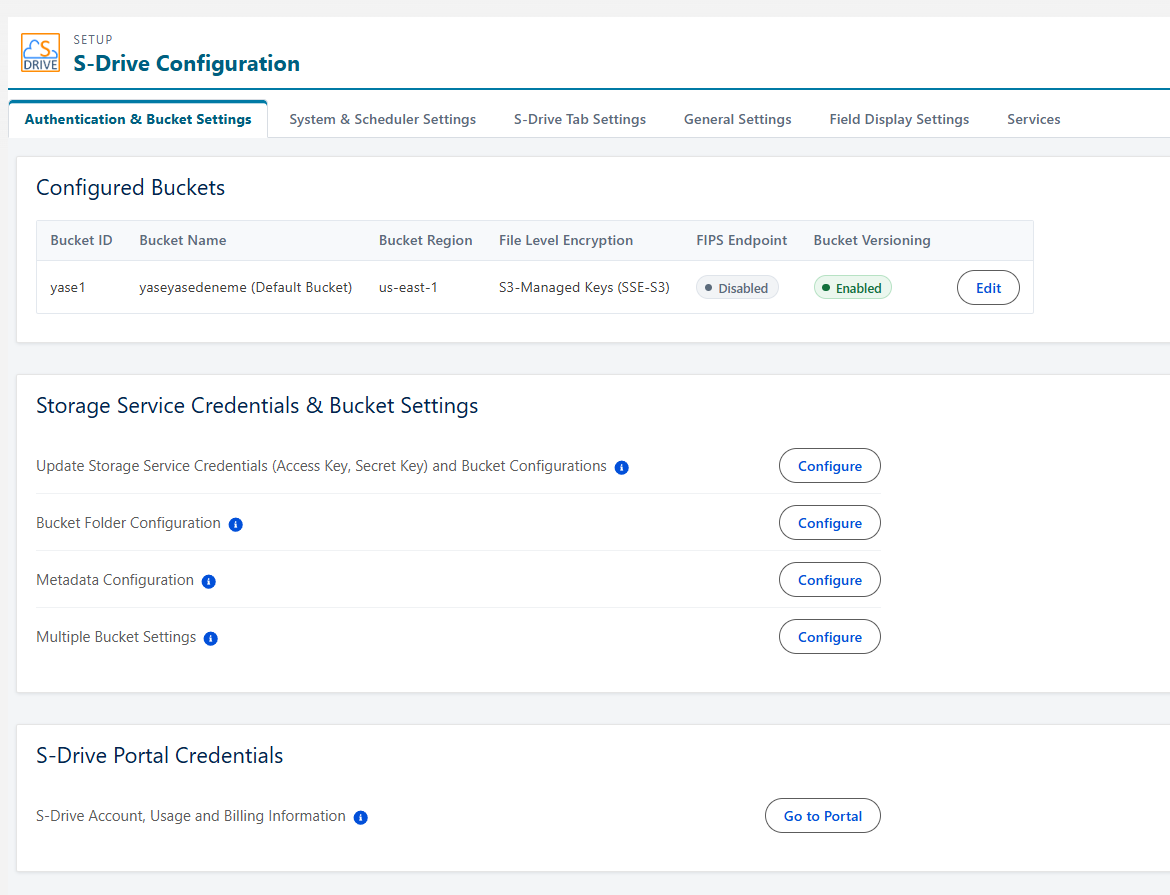
S-Drive Configuration pages are now using Lightning. The old pages remain in this release to give time to get acclimated to the new Lightning pages. You’ll see S-Drive Configuration (Legacy) and S-Drive Configuration.
The new pages load and save faster. They are largely organized the same way, but there are a few changes:
-
The Micro Services tab is now just called Services
-
The Customization tab is now called Field Display Settings
-
System-wide settings, such as Duplicate Filename Preferences and the settings to choose time and frequency for the storage job are now in their own tab called System and Scheduler Setting
We encourage you to use the new S-Drive Configuration page, as we will retire the old one in the near future.
Enhancements
S-Drive Disconnect handing
We have improved our storage job scheduling, disconnect handling, and notifications to reduce the disconnect issues..
-
Added notifications to let you know before a disconnect happens in most cases
-
Added more time after a problem is encountered before a disconnect is initiated to give you time to remedy the situation. This will also avoid the Daylight Saving Time disconnect issue some customers experience each spring.
-
Enhanced the storage calculation job scheduling logic to prevent disconnects from the job being locked
Bug Fixes
-
Fix compatible S-Drive Desktop Experience versions
-
Fix issues with mass Previews
-
Fix Delete After Sync
-
Fix upload field picklist values showing API name instead of label
-
Fix duplicate setting configuration not checked during cut/paste
-
Fix Retention Policy email notifications not sending correctly
-
Fix component errors that occur when debug mode is on
-
Fix Content Authoring user assignment issues and permission issue
-
Fix Customization/File Field settings display
-
Fix batch file sync
-
Fix S-Drive Download Jobs
-
Fix capitalized file extension fails p&t
-
Fix email issue on files with commas in the name
Patch Releases
Deprecated
None
Retired
None
3.6 Release Notes
Release date 10/24/2025
User Experience improvements
Released 10/24/2025
Upgrade Notes
-
Refresh the File Object List as follows:
-
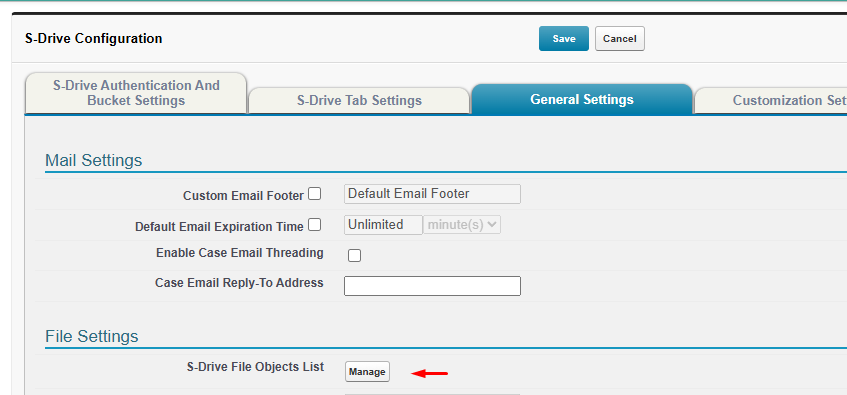
Go to S-Drive Configuration General Settings
-
Click Manage next to S-Drive File Object List
-
On the next page, click the
Restore Previous S-Drive File Object Settingsbutton.
-
-
We suggest entering an email address to get notifications if you haven’t already.
-
From App Launcher, go to S-Drive Configuration
-
Click “Configure” next to Update Storage Service Credentials(Access Key, Secret Key) and Bucket Configurations
-
On the next page, click on Step 7: Connect to S-Drive Portal & set up Email Notifications
-
Enter the email addresses, separated by semi-colons, where you would like notifications to be sent
-
Click Save
-
See Upgrade Paths when upgrading from other releases.
Latest Compatible Desktop Experience
1.15
Includes Recently Viewed list views for custom objects.
New Features
Draggable columns on S-Drive Component
Columns on the S-Drive component can now be dragged to make them larger or smaller. This has been a longtime request from our customers!
There are some known issues with this that will be addressed in later releases:
-
The columns don’t stick when the component is refreshed
-
Column dragging for middle columns sometimes doesn’t operate as expected (moving adjacent columns with them), but if you drag one of the first couple columns, then the columns further to the right start to work better.
-
You can expand a column so far left that it move over top of the column to its left. You can expand a column so far right that it pushes the furthest righthand column off the page
Configure Email notifications more easily
In S-Drive Configuration, you can enter an email address or a list of email addressed to receive alert notifications, such as when your org gets disconnected. Previously, this had to be set in Salesforce Custom Settings.
In S-Drive Configuration, click the Configure button next to Update Storage Service Credentials(Access Key, Secret Key) and Bucket Configurations.
On the resulting page, go to Step 7, and there you can enter emails for notifications.
Enhancements
Desktop Experience Auto-updater
If you use Desktop Experience, Admins can now choose a version as the default, and this will cause users' Desktop Experience version to upgrade automatically the next time they login.
In S-Drive Configuration Micro Services, click Configure for Content Authoring - Desktop Experience.
On the next page, click Configure for Test/Configure S-Drive Desktop Experience Version.
You’ll see a list of compatible Desktop Experience versions. You can download a version to test. Once you’re ready for your users to use it, click the Set as New Version button. When users login to their Desktop Experience, it will automatically upgrade to the new version.
Bug Fixes
-
Fix issue with cutting/pasting shortcuts
-
Fix populating Duplicate page setting
-
Fix Desktop App configuration not showing chosen version
-
Fix Lead conversion failure in certain circumstances
-
Fix PDF editor not working in with AWS storage service (vs Google Cloud)
-
Fix name too long error on File Object List
-
Fix SQueue loop
-
Fix DocuFetch API bugs
-
Fix file name cut off on upload page
Patch Releases
-
3.6.2 - fix S-Drive search timing out
-
3.6.1 - fix S-Drive API issue
Deprecated
None
Retired
None
3.5 Release Notes
Release date 6/17/2025
3.4 Release Notes
Release date 5/28/2025
3.3 Release Notes
Release date 4/29/2025
airSlate integration, DocuFetch Template Management, Desktop Experience autoupdate
Released 4/29/2025
Upgrade Notes
See Upgrade Paths when upgrading from other releases.
If using DocuFetch:
-
There is a new Enable DocuFetch checkbox you’ll need to check
-
Go to S-Drive Configuration->Micro Services and click
Configurenext to Configure DocuFetch Integration -
Check the Enable DocuFetch box
-
-
There are new permission sets and a change to an old permission set. You may need to check your users' permissions
-
CHANGED: SDrive DocuFetch User permission set no longer has create/edit for templates and template items, but has read permission, so users can use templates to build requests but cannot create new ones or change existing ones.
-
NEW: SDrive DocuFetch Template Creator permission set allows users to create templates but not create requests. The two permission sets can be used together to allow users to create requests and templates.
-
NEW: SDrive DocuFetch Admin gives full permissions including view all/modify all for all DocuFetch objects
-
Note that if S-Drive is installed for all users, all internal users with custom profiles will be given CRUD on the 4 DocuFetch objects, and you may need to remove permissions if you want to restrict what users can do. The 4 objects are
-
SDrive Document Intake Request
-
SDrive Document Intake Request Item
-
SDrive Intake Request Template
-
SDrive Intake Request Item Template
If using Preview and Thumbnail:
We’ve implemented a change to how the P&T settings are saved. You’ll need to update your settings:
-
Go to S-Drive Configuration->Micro Services and click on Preview and Thumbnail configuration
-
Click the “Restore Previous P&T Settings” button.

New Features
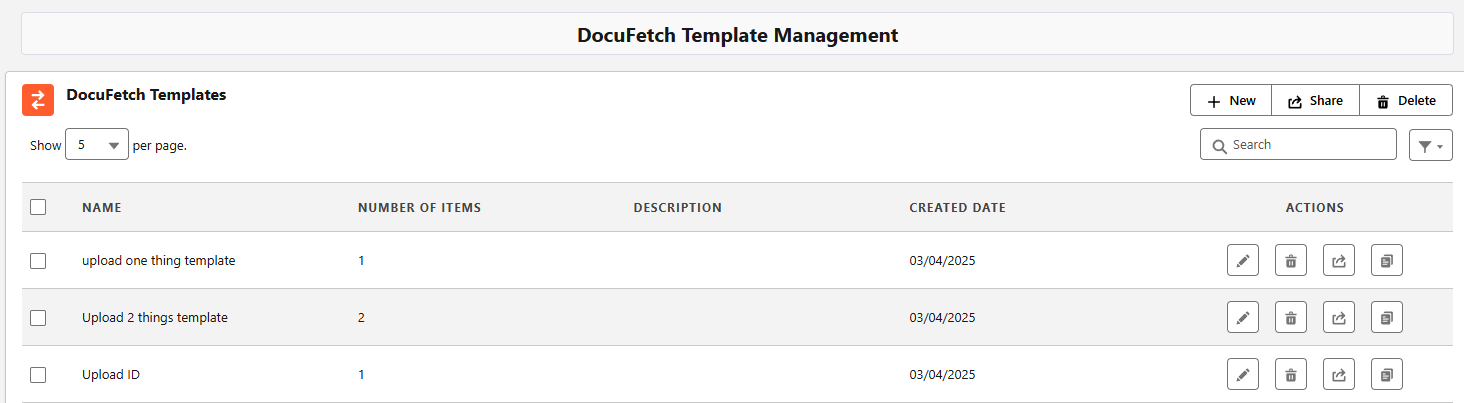
New DocuFetch Template Management
Creating and managing templates for DocuFetch is now easier with a DocuFetch Template Management dedicated tab. Now templates can be created without first having to be on a record. Editing templates is clearer now with a separate UI for templates rather than editing templates within a DocuFetch request. You can still save a request as a template.
To manage templates, users can go to the Template Management area from DocuFetch Requests home or from App Launcher. See DocuFetch User Guide for more information.

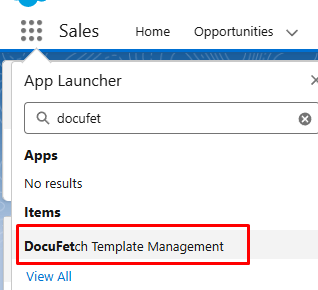
From DocuFetch Template Management, users can create new templates, edit, share, clone and delete templates.
airslate integration with DocuFetch
We are now providingairslate with DocuFetch as an integrated solution to all your Document Management needs. Use airslate with DocuFetch to send documents out to users to review, fill in information, or sign.
DocuSign integration with DocuFetch
DocuSign was already available with S-Drive to send a file out for e-signature directly from an S-Drive file. Now it is integrated with DocuFetch as one of the e-signature solutions along with Formstack, AdobeSign and airSlate.
Desktop Experience Auto Updater
Desktop Experience can now be configured in S-Drive Configuration to automatically update users' Desktop Experience versions to the latest version. The latest version can also be updated just for the Admin for testing purposes.
Enhancements
S-Drive Enhancements
Upload Fields
Upload fields – fields that users see and populate on the upload page-- can be configured org-wide or on a user or profile basis just like the columns that are displayed in the S-Drive component. Prior to this release, they could only be configured the same way for everyone.
Bug Fixes
-
Fixed issues with large file upload failing when canceled or paused
-
Fixed upload error when switching tabs
-
Removed unnecessary buttons from public share page
-
Fixed Compact View preview
-
Fixed payment job error “job is locked”
-
Fixed custom setting name too long for Preview and Thumbnail
-
Fixed error when deleting large number of files
-
Fixed S-Drive previews on S-Drive detail page when in small area
-
Fixed issue with non-S-Drive users uploading Salesforce files
Deprecated
None
Retired
None
3.2 Release Notes
Release date 1/8/2025
3.1 Release Notes
Release date 8/28/2024
3.0 Release Notes
Release Date 4/26/2024
Desktop Experience
Released 4/23/2024
Desktop Experience
Upgrade Notes
No action needed when upgrading from 2.27 to this release.
See Upgrade Paths when upgrading from other releases.
New Features
Desktop Experience
S-Drive Desktop Experience, sets up a virtual drive on your local computer where S-Drive files can be accessed.
-
Upload files from local storage to S-Drive all on your desktop, without being logged in to Salesforce directly
-
Edit files right on your computer with the changes synced back to S-Drive
-
Desktop Experience configuration settings determine which objects users see on their desktops, while standard Salesforce permissions and sharing rules apply.
Read more about Desktop Experience (Paid Feature) and contact Sales for more information.
AdobeSign integration with DocuFetch
If you use S-Drive’s DocuFetch document management add-on, you can send files for e-signature with AdobeSign or Formstack.
Enhancements
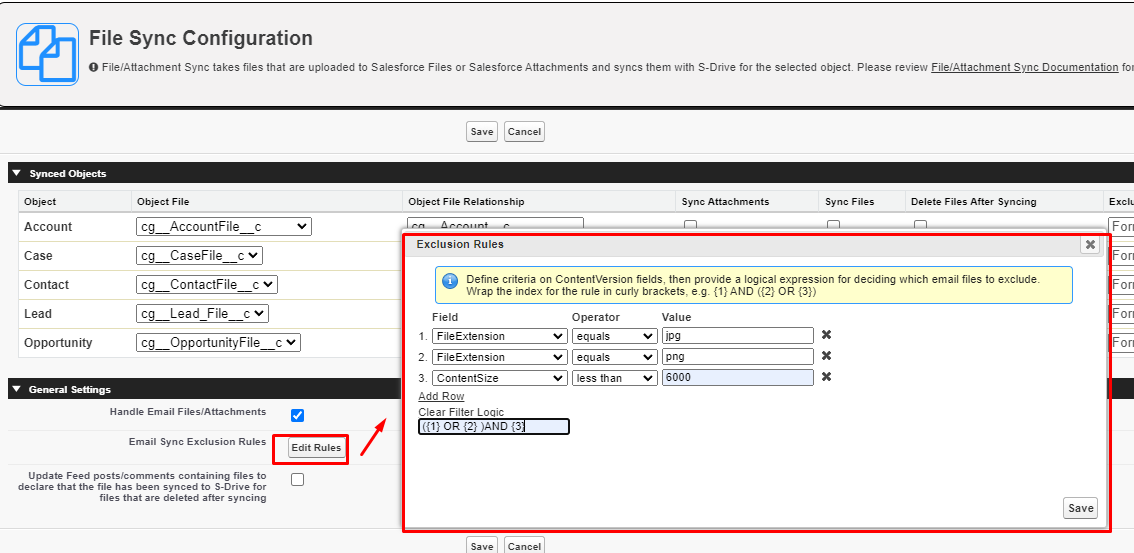
Exclusion rules on File Sync for Email
When syncing email attachments to S-Drive you can now create rules to exclude some email attachments from syncing. By specifying criteria such as file type or size, you can determine how to exclude email signature attachments. That’s just one use case. You can determine your own rules.
Bug Fixes
-
Fix Preview and Thumbnail versioning issue
-
Fix folder tree refresh on mobile
-
Fix private folders visible in folder tree
-
Fix file sync file.png placeholder name issues
Deprecated
None
Retired
None
2.27 Release Notes
Release Date 1/24/2024
DocuFetch with Formstack Integration
Released 1/24/2024
DocuFetch
PLEASE READ
If you are using Content Authoring (online editing) do not upgrade to this release. Content Authoring won’t work. It will return in the next release.
Upgrade Notes
Trusted URLs (formerly CSP Trusted Sites)
Go to Setup->Trusted URLs and ensure you have the following URLs listed. Make sure the checkboxes for connect-src and image-src are checked in all of them.
In the following urls, bucketname is the name of your bucket and region is the bucket region (such as us-east-1)
-
https://s3.region.amazonaws.com
-
https://bucketname.s3.region.amazonaws.com
-
https://bucketname.s3.amazonaws.com
-
https://s3.amazonaws.com (should already exist)
-
For the url https://zip.cyangate.com (which should already exist) be sure that the frame-src box is checked as well as the others.
If using SURL/Public Share
-
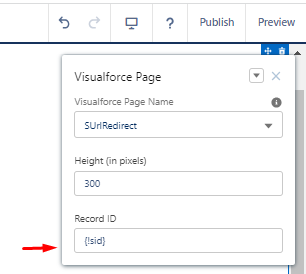
Access your SURL community by going to Setup->Digital Experiences->All Sites and click Builder
-
Click into the Visualforce Page component
-
On the Configuration window, change Record Id from {!RecordId} to {!sid}
See S-URL and Public Share Setup for details.
New Features
DocuFetch - Document Collection with optional Formstack integration
DocuFetch provides collection by providing a way to:
-
Create a request asking for particular documents to be uploaded
-
Send the request link to a user outside of Salesforce, which will provide an upload button for each requested document
-
Allow the user to upload one or more documents
-
Allow documents that are pre-filled in via merge fields and documents that have been signed via e-signature by the user if Formstack integration is used
-
Approve or reject the received documents, and request another document if one is rejected
-
Store the user-uploaded documents in S-Drive
-
Create document request templates to be used over and over again
Learn to configure and use DocuFetch
Read more about our DocuFetch end-to-end document collection solution:
-
https://www.sdriveapp.com/blog/streamlining-document-collection-for-financial-professionals/
-
How Document Collection Process for Salesforce Saves Time and Money
E-Signature and merge fields require Formstack Documents (formerly WebMerge) - Document Generation
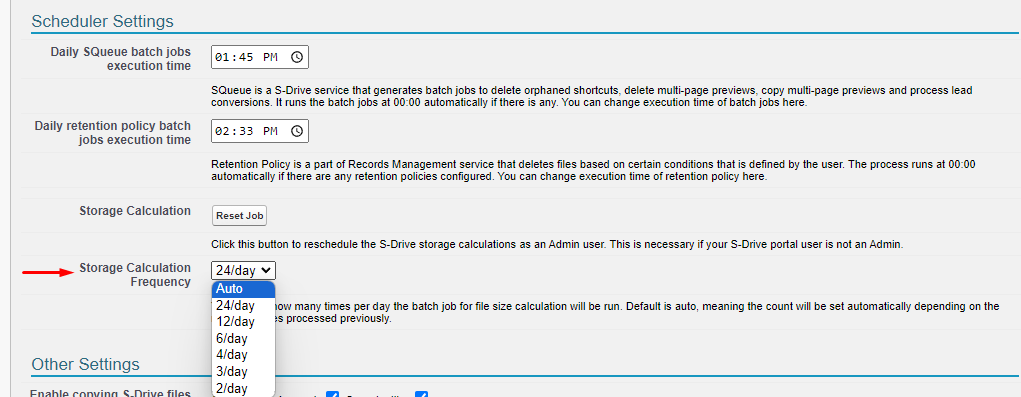
Control frequency of S-Drive’s Batch Job
S-Drive runs a batch job to calculate storage, which is needed for billing purposes. Previously the job ran hourly. For orgs with many files or many other batch jobs, this could be problematic, as the 24-hour limit on batch jobs could be reached.
There is now a configuration setting to set how often the job runs. It defaults to “auto” which will set the frequency based on the number of S-Drive files and reduce the frequency for more files, as more files require more jobs. It can also be set to 2-24 times/day.
FIPS (Federal Information Processing Standard) Compliance
You can now configure S-Drive to work with AWS FIPS-compliant buckets. https://aws.amazon.com/compliance/fips/
To enable this, your bucket must be in a region in North America. If it is, you’ll see a button on the bucket to enable FIPS. See Managing your Buckets.

In order to use FIPS some endpoints need to be set up:
-
Add a remote site setting (go to Setup-->Remote Site Settings) in the form of
-
bucketname.s3-fips.region.amazonaws.com where bucketname is the name of your bucket and region is the bucket’s region, such as us-east-1.
-
-
Add Trusted URLS (go to Setup-->Trusted URLs)
-
1️⃣ https://bucketname.s3-fips.region.amazonaws.com where bucketname is the name of your bucket and region is the bucket’s region, such as us-east-1.
-
Make sure to check the boxes
-
connect-src
-
img-src
-
-
2️⃣ https://s3-fips.region.amazonaws.com where bucketname is the name of your bucket and region is the bucket’s region, such as us-east-1.
-
Make sure to check the boxes
-
connect-src
-
img-src
-
-
Enhancements
File Sync
We have included a number of File Sync enhancements to make this feature more flexible.
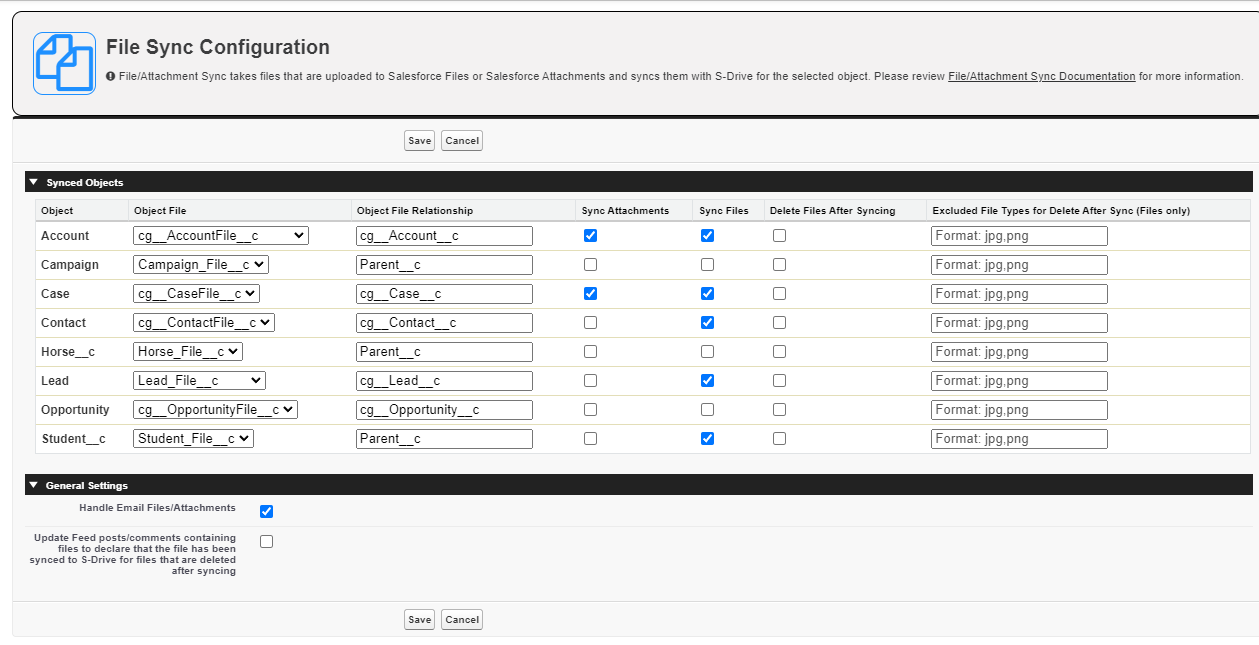
Delete Salesforce file after Syncing
This configuration was previously org-wide, but can now be configured by Object. When configured, the Salesforce file that is uploaded and synced to S-Drive will be deleted after the file is synced to S-Drive and put in the AWS bucket.
Exclude file types for Delete after Sync
You can now list file types that should not be deleted after syncing to S-Drive.
Update Chatter posts with sync message
When files are attached to Chatter posts, and file sync is enabled with “Delete after Sync” enabled, you can now choose whether or S-Drive will add a message to the Chatter post indicating that the file can now be found in S-Drive.
S-Drive Email
Type-ahead “To” field with contact records
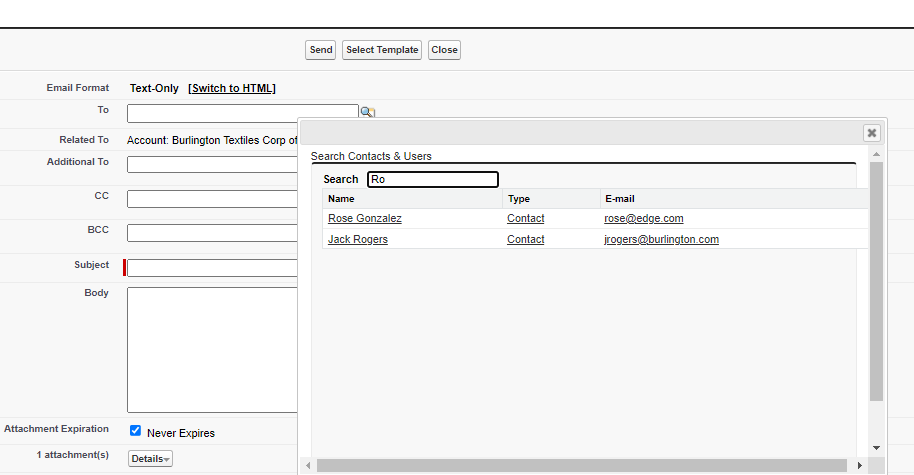
The S-Drive Email “To” field now features type-ahead and will be a contact record, rather than just a text email address. This will allow the recipient information to be used for merge fields in an email template.
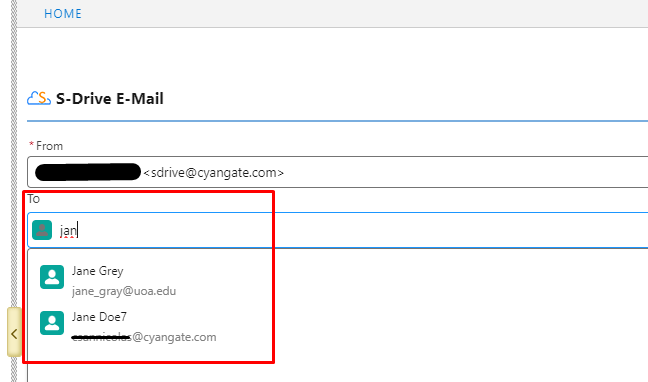
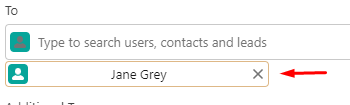
The Additional To field can be used for either internal or external users. When clicking the search icon, Contacts associated with the record will be listed first. to make finding them easier.
Preview template merge fields
You can now preview an email to check that the merge fields are correct, similar to Salesforce email.
After choosing a template, click the eyeball icon to see your email preview with merge fields.
Portal Connection - User no longer needs Modify All Data permission
In your S-Drive Portal Account, the user used to connect S-Drive no longer needs to have Modify All Data permission. This increases security. The user must still have Customer Application, Send Outbound Messages, and access to S-Drive’s apex classes and custom settings definitions. See Installing and Activating S-Drive for details.
File List clickable columns
Until now, the file name was the only clickable column in the S-Drive component. When you click file name, it either shows the file details or opens the file, depending on your configuration.
Now you can make other columns have that behavior. This can be useful if you have a custom field that translates the file name to another language, and you want that custom field to be the one users click on.

See Column Settings: wrapping headings, column widths, clickable columns for more information
Folder Tree Expand/Collapse
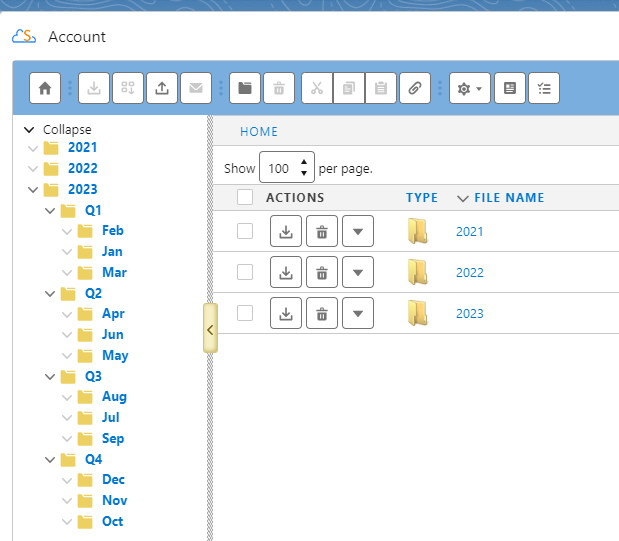
You can now easily expand and collapse the folder tree.
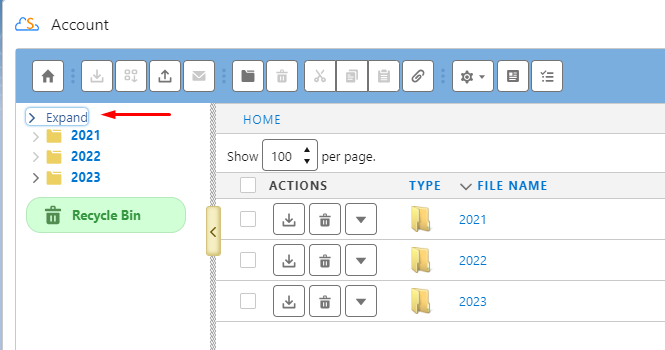
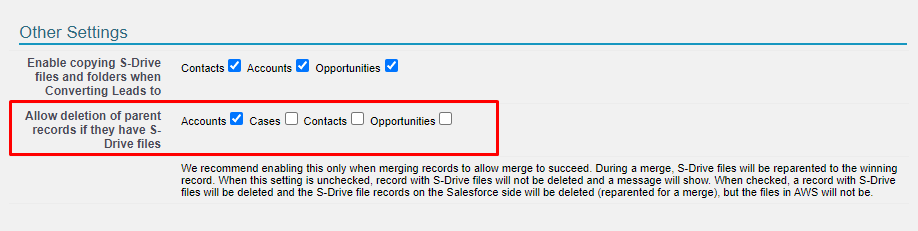
Merge Accounts, Cases, Contact, Opportunities even if they have S-Drive files
S-Drive has a trigger on out-of-the-box objects that disallows deletion of a parent record if there are S-Drive files on it. This causes trouble with merging records since the losing record is deleted. We now have a setting to allow deletion of a parent record if it has files. The files on the losing record will be reparented automatically by the merge operation.
We recommend checking the box when doing merges and unchecking when not needing to merge.
Bug Fixes
-
Fix Breadcrumbs should not show folders above the folder that was shared via public share
-
Fix public share links not opening on mobile
-
Fix apostrophe in file name causes error in Lightning Upload
-
Fix upload fails when OWD is public read/write
-
Fix Copy URL expiration date not respected for long urls on Lightning
-
Fix repetitive error message when deleting nested folders without permission
Deprecated
None
Retired
None
2.24 Release Notes
Release Date 5/18/2023
Zip and Download Job
Released 5/18/2023
-
Folder creation and Shortcuts in Flow
Upgrade Notes
-
For the new Zip and Download Job feature, there is a new object called SDrive Job. You may need to give users CRUD permissions and access (sharing settings) for this object depending on your needs. We highly recommend making OWD for SDrive Job Private for external users.
-
Salesforce is implementing Lightning Web Security. This release fixes issues with S-Drive upload that occurred when LWS is enabled.
Once this release is downloaded from AppExchange, there are no additional required steps to upgrade to this release from the previous release. If you are upgrading from an older release, please refer to Upgrade Paths.
New Features
Create Zip and Download Job (download larger files)
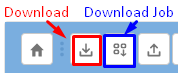
Download much larger groups of files (over 6GB) than you were able to before. Zip and Download can sometimes time out if the group of files was over 6GB. Now You can use the Download Job button to have the files downloaded using a background job so it won’t fail.
This feature uses a new object called SDrive Download Job. Admins will need to check Sharing Settings (Org Wide Default) for this and give users profile permissions in order to use this feature.
See Zip and Download (downloading multiple files/folders) for more details.
Enhancements
Date formats by locale
Date formats for S-Drive now adhere to the user’s locale
File Activities for Online Editing (Microsoft integration)
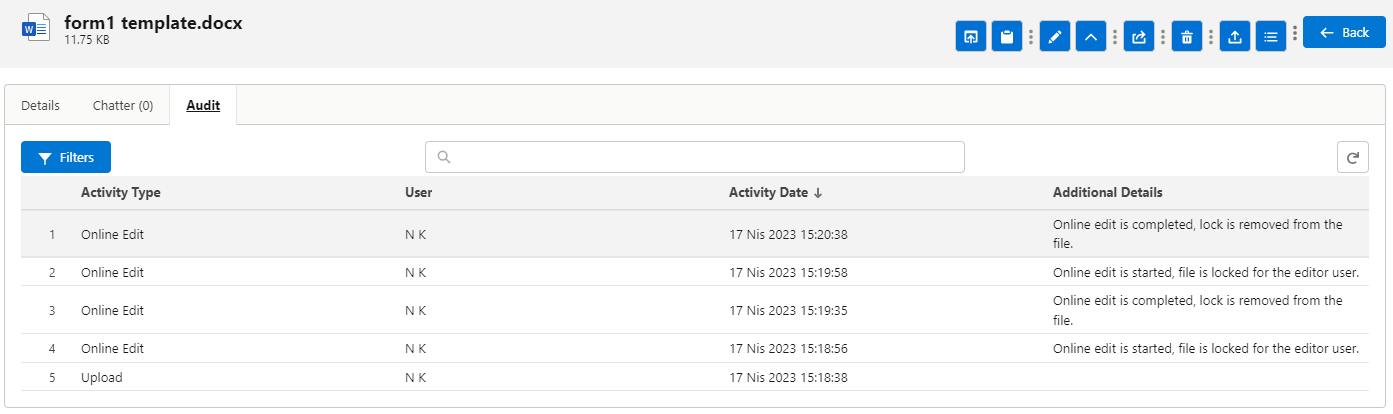
File Activities generated for online editing:
-
After starting online editing via “open in Microsoft” menu option: Online Edit - Online edit is started, file is locked for the editor user.
-
After closing out of the editing session: Online Edit - Online edit is completed, lock is removed from the file.
-
For the new version of the file after saving: New Version - New version uploaded after online edit.
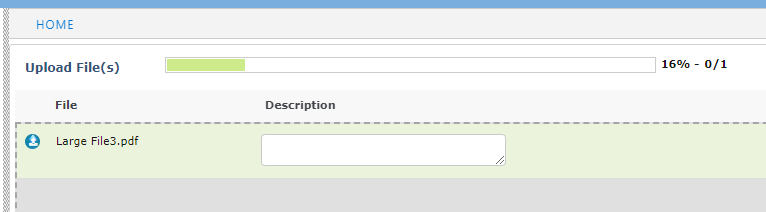
Upload Progress Bar moved to top
The progress bar for file uploads is now at the top of the list of files, so users don’t need to scroll to see it.
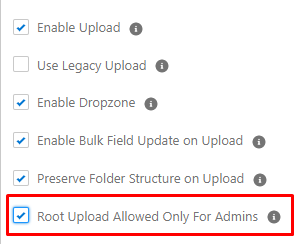
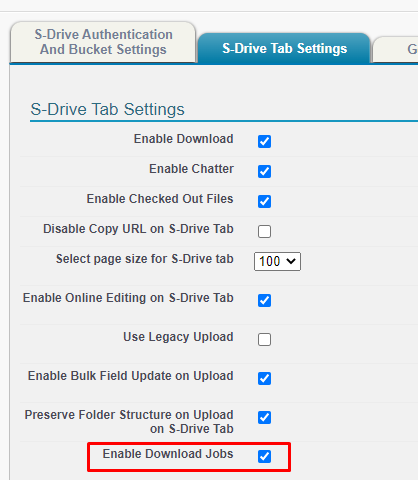
Allow only Admins to upload to Root
You can restrict non-Admin users from uploading files to the root level. This can be used when you have a folder structure and want all uploads to go into folders. This can be configured on the S-Drive Lightning component for objects, or on S-Drive Configuration-->S-Drive Tab settings for S-Drive Tab.
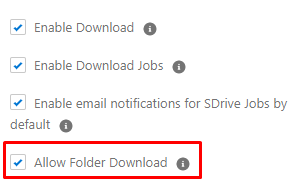
Disallow Download of Folders
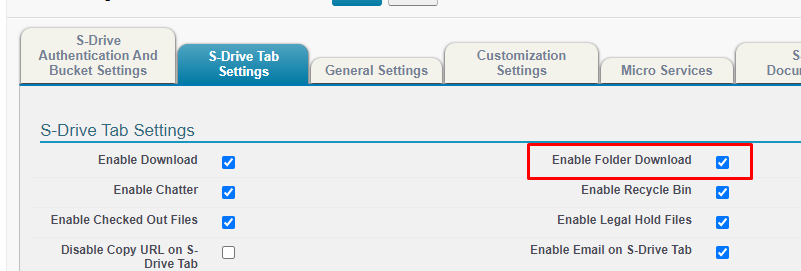
You can prevent users from downloading entire folders. This can be useful when the files in a folder are very large, or when there are a lot of files and you want users to have to choose. This can be configured on the S-Drive Lightning component for objects, or on S-Drive Configuration-->S-Drive Tab settings for S-Drive Tab. Allow Folder Download is checked by default.
Performance Improvements
Improvements have been made to make the S-Drive component load faster and avoid timeouts.
Lightning Web Security
We have implemented changes to accommodate LWS. Prior to this release, if LWS was enabled, the S-Drive upload window was not rendering properly.
Bug Fixes
-
Fix error message on upload page is too small when translated
-
Fix Edit button shows on Public Share detail when edit is not permitted
-
Fix upload fails if file object lookup field is not called “Parent”
-
Fix error when deleting manual share if S3Object is public read/write
-
Fix isAmin check for non-English orgs
-
Fix custom file object lookup field causes problems when not called “Parent”
-
Fix Lead Conversion issues in disconnected orgs
-
Fix Shortcuts require access to underlying file
Deprecated
None
Retired
None
2.23 Release Notes
Release Date 1/20/2023
Folder and shortcut creation in Flows
Released 1/20/2023
-
Folder creation and Shortcuts in Flow
Upgrade Notes
Once this release is downloaded from AppExchange, there are no additional steps to upgrade to this release from the previous release. If you are upgrading from an older release, please refer to Upgrade Paths.
New Features
Create Folders and Create Shortcuts in Flows
You can now easily create Folders and Shortcuts in Flows using S-Drive Apex Actions. This was always possible before by manually filling in all the fields of the new folder or shortcut record, but now it’s easier than ever.
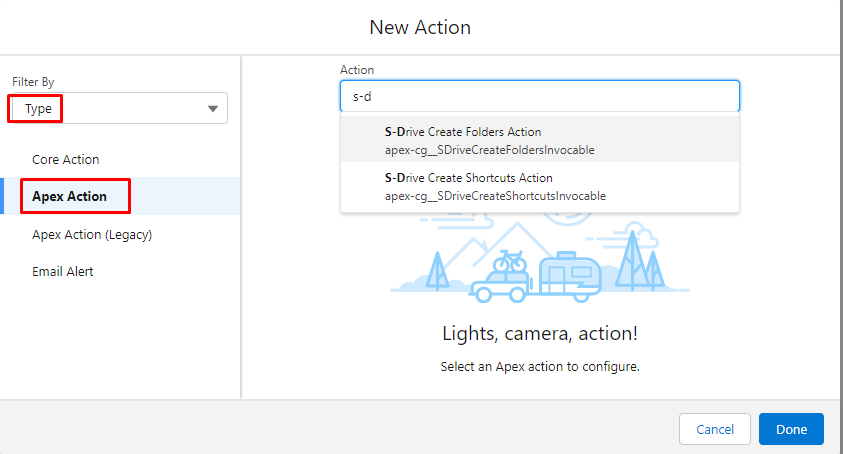
Example Use Cases:
-
If you want the same folders on all Accounts, use a Flow with the S-Drive Create Folders Action to create the folder template every time an Account is created
-
If you want all Contact Files to have a shortcut on the parent Account, use a Flow with S-Drive Create Shortcuts Action to create a shortcut each time a file is uploaded to a Contact.
For more information, see Flows with S-Drive in the Admin Guide.
Enhancements
S-Drive Email - Related To field now defaults to current record
On S-Drive Email, the Related To defaults to the current object and record.
Set S-Drive Tab attributes in Digital Experience
Previously, the attributes (toolbar buttons, etc) were set using S-Drive Configuration and were the same internally and in the community. Now they can be configured separately.
Use of required fields on Folders
You can now have required fields on a file object and the fields will be shown on folder creation. Prior to this release, you could not have required fields because there was no way to fill the in when creating a folder. Some required fields may only make sense for files, not for folders. In that scenario, we suggest using validation rules.
Improved Admin user interface for bucket management
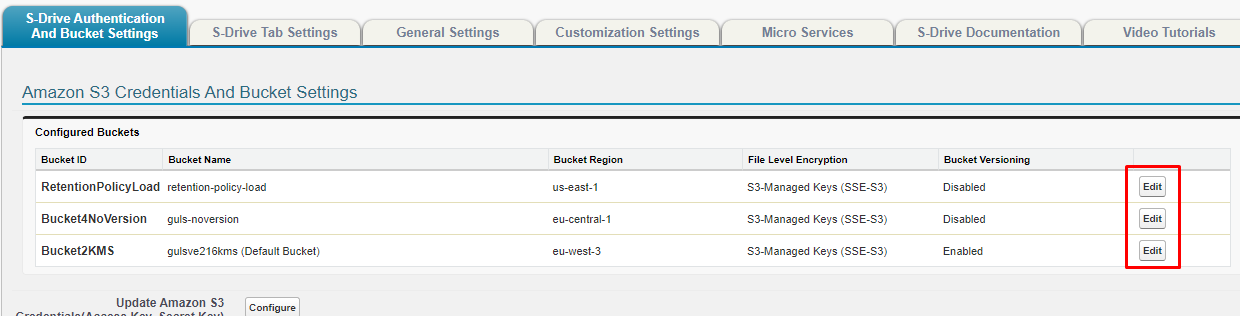
It’s easier to manage bucket settings with a new edit button on the bucket list on S-Drive Configuration.
Bug Fixes
-
Fix Mobile Recycle Bin restore and delete buttons
-
Remove “Save” button from Field Settings if user is non-admin
-
Fix View Settings don’t work if Enable Fields is unchecked
-
Remove Fields button from Public Share component
-
Fix duplicate folder upload causes infinite loop error
-
Fix inherit sharing checkbox not working when unchecked
-
Fix inherit sharing folder owner issue
-
Fix Retention Policy configuration error when too many objects
Deprecated
None
Retired
None
2.22 Release Notes
Release Date 10/19/2022
E-Signature Integration
Released 10/19/2022
-
E-Signature integration,
-
Email enhancements,
-
Faster upload
Upgrade Notes
Once this release is downloaded from AppExchange, there are no additional steps to upgrade to this release from the previous release. If you are upgrading from an older release, please refer to Upgrade Paths.
New Features
E-Signature Support for DocuSign
With E-Signature, you can send documents out to DocuSign directly from S-Drive and the signed document will be uploaded back to S-Drive.
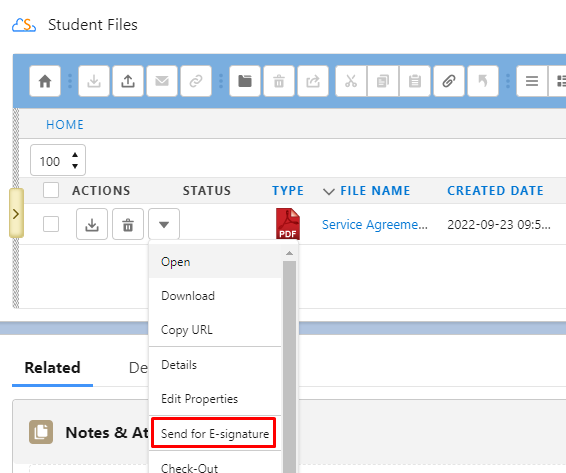
E-Signature solutions other than DocuSign will be supported in the future.
Enhancements
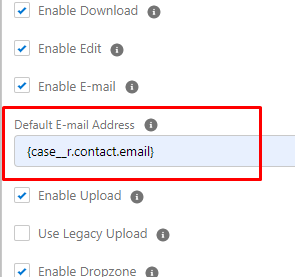
Expanded Default Email Address
When configuring S-Drive Lightning component, you can now use a lookup to specify the default email address. For example, on a Case, you can configure the default email address to be the Case Contact’s email.
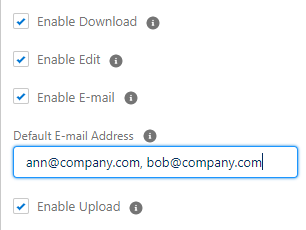
You can also now list more than one email address in a comma separated list
Faster Upload
Processing that takes place before the file begins to upload has been improved, leading to overall improvement the time it takes to upload a file.
Faster Loading for S-Drive Configuration Page
S-Drive Configuration Page and some sub-pages (Preview and Thumbnail Configuration, Bucket Folder Configuration) will load faster. Records Management is now on a separate sub-page.

Sign Up for S-Drive Emails
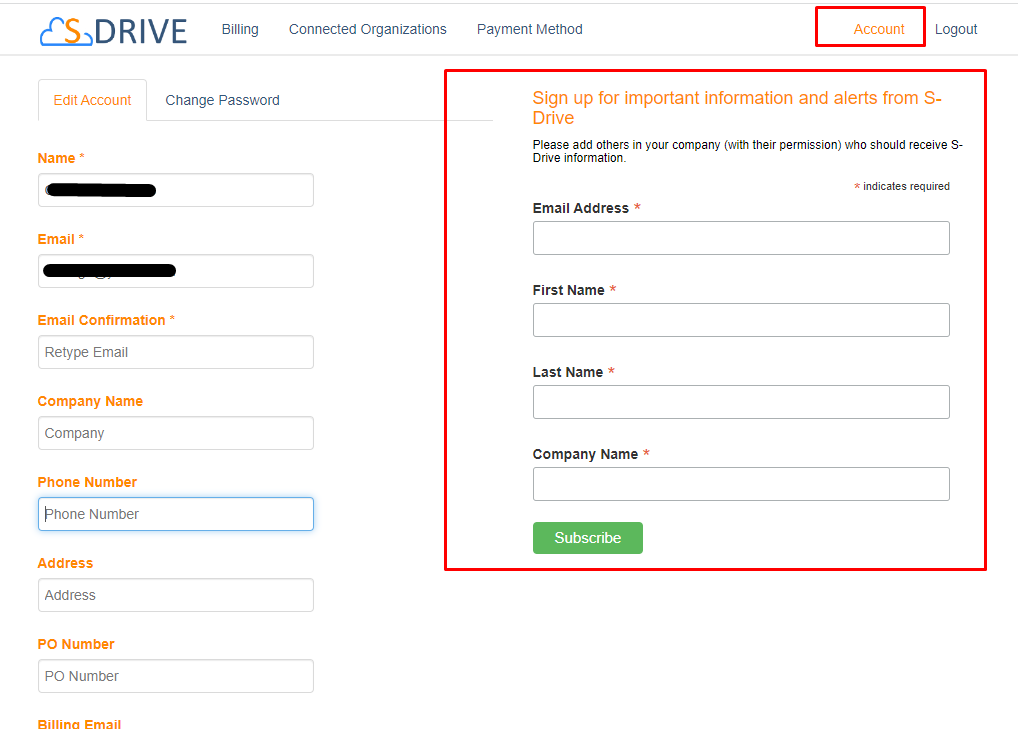
You may be missing important emails from S-Drive if you are not the person who installed it. Now you can subscribe to our mailing list from your S-Drive Portal Account. You’ll receive critical emails about action you may need to take, along with information about new releases and invitations to our webinars. You can sign up as many people in your company as you like. (Please make sure you have their permission.)
In the Portal (portal.sdriveapp.com) go to the Account Tab and sign up.
Bug Fixes
-
Provide error message when accessing a shortcut and the underlying file has been deleted
-
Fix thumbnails not showing in mobile
-
Fix folder size on compact/mobile views
-
Fix file sync not working when file uploaded by guest user
-
Fix cleanup when new version upload fails
Deprecated
Retired
-
MyDrive - the MyDrive toggle button on S-Drive Tab has been removed. If you used MyDrive, the files still exist in your S3 bucket. If you have any concerns, please Open a Support Ticket.
2.21 Release Notes
Release Date: 8/31/2022
API updates
Released 8/31/2022
The main purpose of this release is to upgrade all the Salesforce Platform API versions that are being retired in Summer '23. There are no new features in this release.
Upgrade Required
Due to Salesforce API version retirements, all S-Drive customers must upgrade to this release (or a future release) before their org rolls over to Summer '23 (in spring of 2023)
For more information on the retirement of these API versions:
Upgrade Notes
Custom logo on sdrive component change from static resource
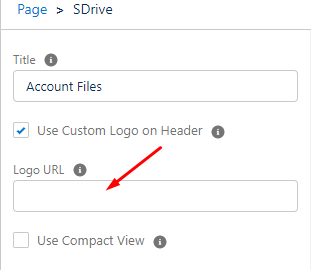
Previously, in order to use a custom logo on your S-Drive Lightning component, you needed to upload the logo as a Static Resource. Now you can use a url to define where the logo is. This allows you to put different logos on different S-Drive components.
To make your old custom logo work:
-
Go to Setup-->Static Resources
-
Find SCustomLogo
-
Click View File
-
In the browser url bar, copy everything after “/resource”
-
In the Logo URL box, type /sfsites/c and then paste the url you copied, so it will look something like this
-
/sfsites/c/resource/1701704605000/SCustomLogo
-
If you wish to use a new custom logo that is not a static resource, you will need to add the url to CSP Trusted Sites (Setup-->Trusted URLs.)
New Features
None. This release is mostly for updating Salesforce API versions. It has some small enhancements and bug fixes.
Enhancements
Custom logos can be different for different S-Drive Lightning Components
Previously, if you wanted to use a custom logo on your S-Drive Lightning component, you had to use the same logo everywhere. Now you can use different logos on different components.
To use a new logo:
-
get the url of the logo wherever it resides
-
put that url in the S-Drive Lightning configuration as shown above.
-
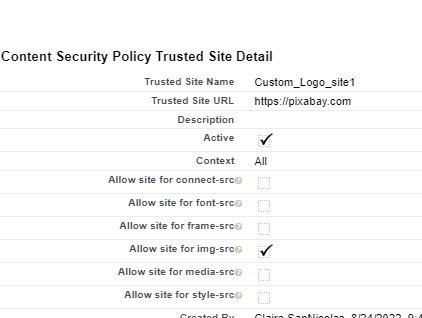
Add a CSP trusted site so the logo can be found
-
Go to Setup-->CSP Trusted Sites
-
Click New
-
Add the url of the site where the logo resides
-
Make sure the checkbox for images is checked
-
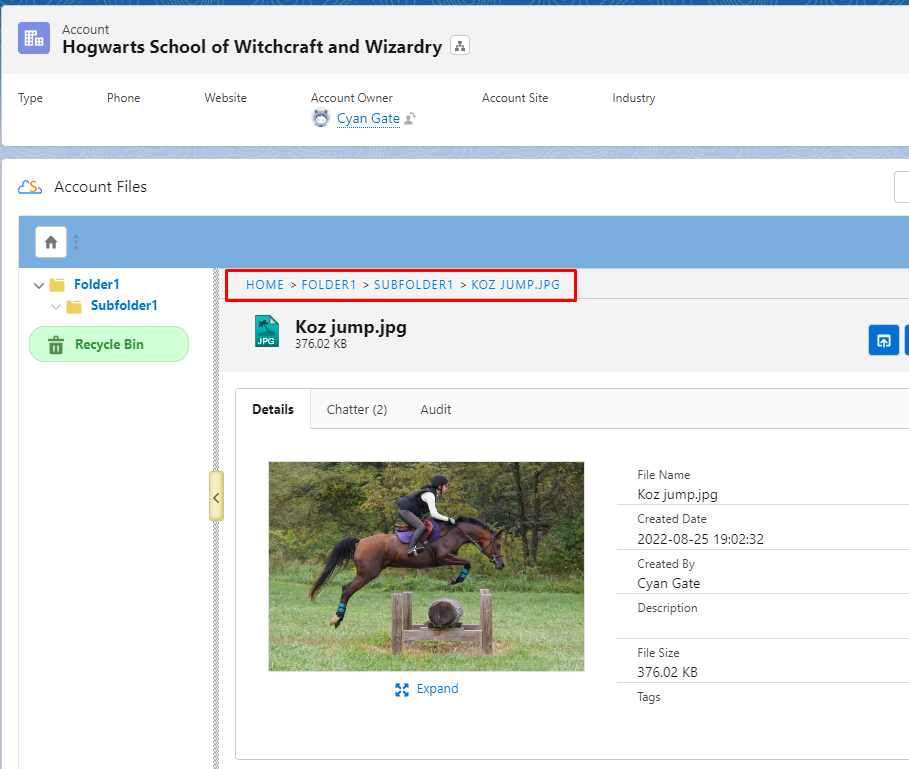
Open in S-Drive button goes directly to file
When using the Lightning component S-Drive for File Objects, the Open in S-Drive button will now go directly to the detail view of the file on the parent page, rather than to the file list. This way, if you file is several folders deep or one of a long list of files, you will be taken directly to the file.
Bug Fixes (2.21 and 2.21.1)
-
Fix video previews not showing on file detail page
-
Fix “enable auto upload” not working
-
Fix preview and thumbnails when new version with same filename is uploaded
-
Fix breadcrumb navigation not working on file detail page
-
Fix Tag field not showing when editing file details
-
Fix S-Action custom label not working when file type is configured
-
Fix S-Action showing on detail page for disallowed file types
-
Fix Duplicate rules not respected for folder upload
-
Fix Uploading empty folder shows nothing (documentation fix only--message shown on upload screen)
-
Fix Compact View thumbnails not showing correctly
2.20 Release Notes
Release Date: 5/27/2022
Folder upload, disconnection notification, email enhancements
Released 5/27/2022
Upgrade Notes
New Lightning Upload
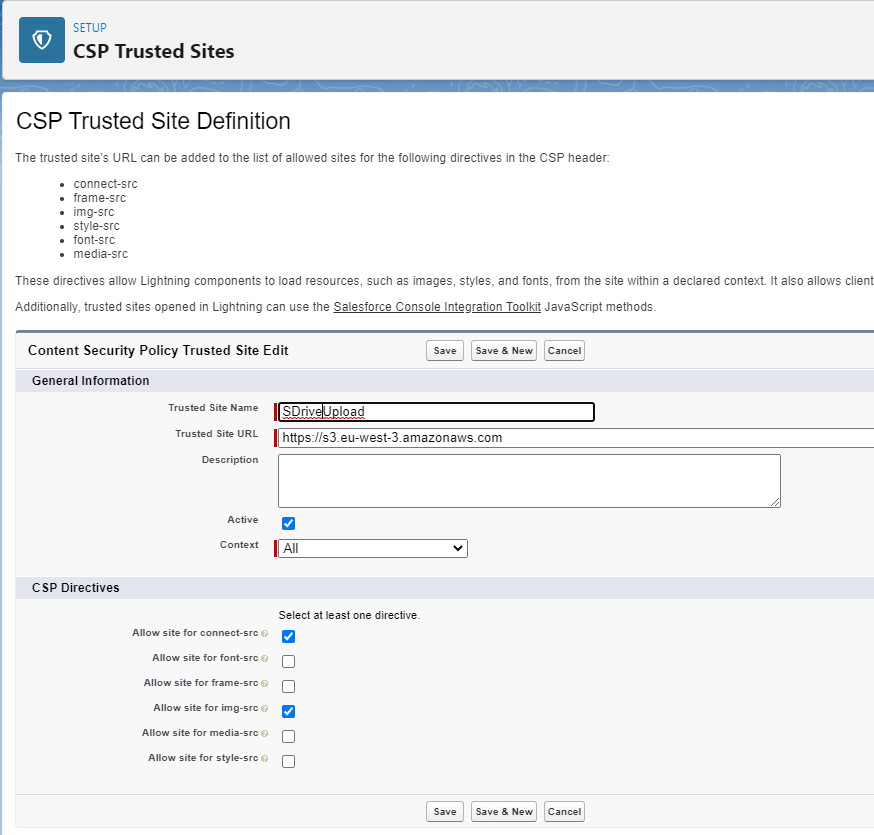
The new Lightning upload is turned on by default. To use it, a CSP trusted site is needed.
Required: Add 2 CSP Trusted sites:
-
Go to Setup--> CSP Trusted Sites
-
Add a url in the form https://s3.region.amazonaws.com where region is your bucket region (such as us-east-1)
-
Check the boxes as shown in the image
-
Click Save and New
-
Add a url in the form https://s3.amazonaws.com
-
Click Save
New Features
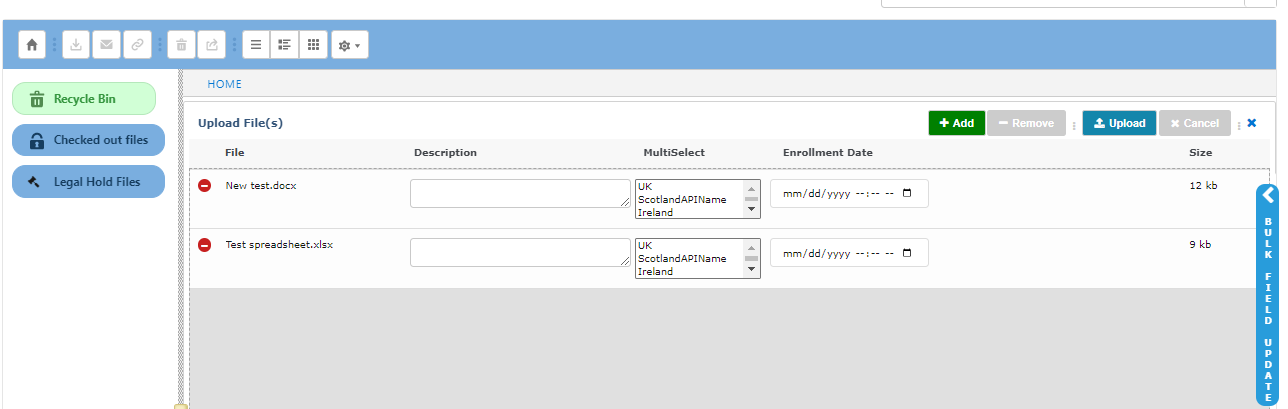
New Lightning Upload Component
-
Our new Lightning Upload component allows for more features and enhancements when it comes to uploading files, including Folder Upload and Bulk Field Update.
-
Buttons have been added at the top for ease of use.
-
The chrome flag that had to be disabled (chrome://flags/site-isolation) to use drag and drop does not need to be disabled any longer with Lightning Upload.
-
Clickjack settings (Setup-->Session settings) that had to be unchecked with our visualforce upload page can be checked with the Lightning upload page. However S-Drive manual sharing will still need Clickjack protection off to work.
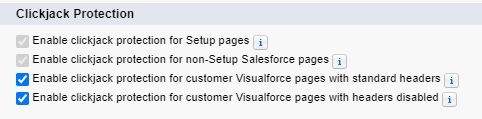
FOLDER UPLOAD
-
You can now drag and drop a folder with subfolders to upload, and the folder structure will be preserved in S-Drive, instead of having the files all uploaded to the Home level.
You must first click the Upload button, then drag and drop. You cannot drop folders directly onto the S-Drive component if you want the folder structure to be preserved.
BULK FIELD UPDATE
-
When uploading multiple files, you can bulk update fields on the upload page
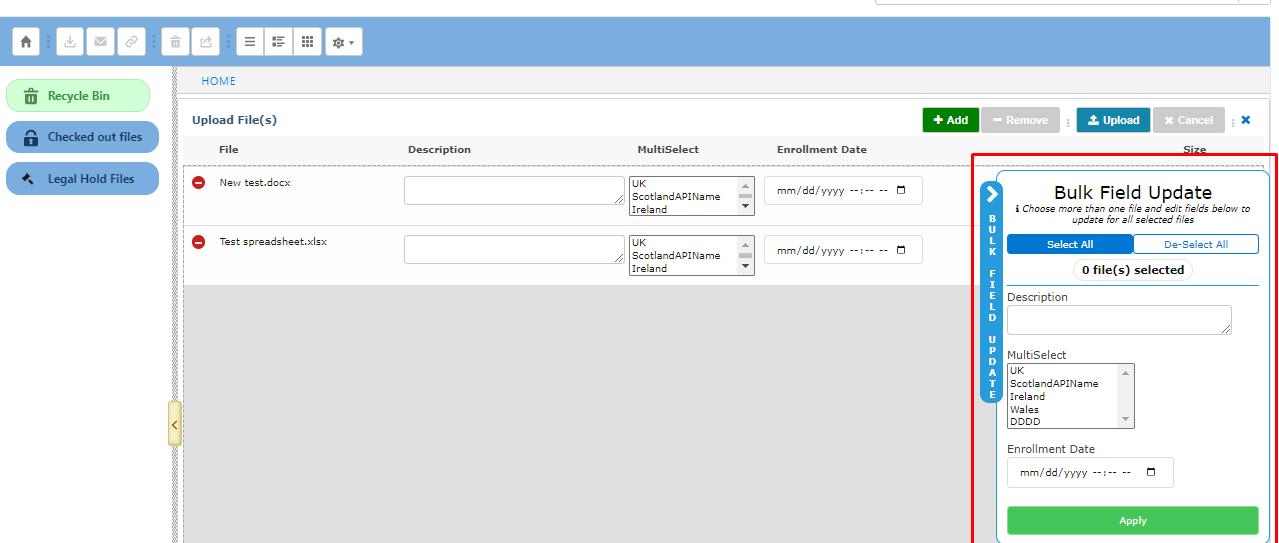
STANDALONE UPLOAD COMPONENT
-
The new S-Drive Upload Lightning component can be used as a standalone upload component. This can be useful for allowing customers to upload files in a digital experience without showing the full S-Drive file list or to have a component that is always ready to have files dropped without having to click on the main component.
-
If there is no standard S-Drive Lightning component on the page, users will not see a list of uploaded files.
-
To use this, edit the object lightning page and drag the SDriveUpload component to the page.
-
See S-Drive Upload Standalone Component for more information.
BETTER DISPLAY OF ERROR MESSAGES
-
Error messages are now displayed at the top instead of having to hover over the yellow bubble
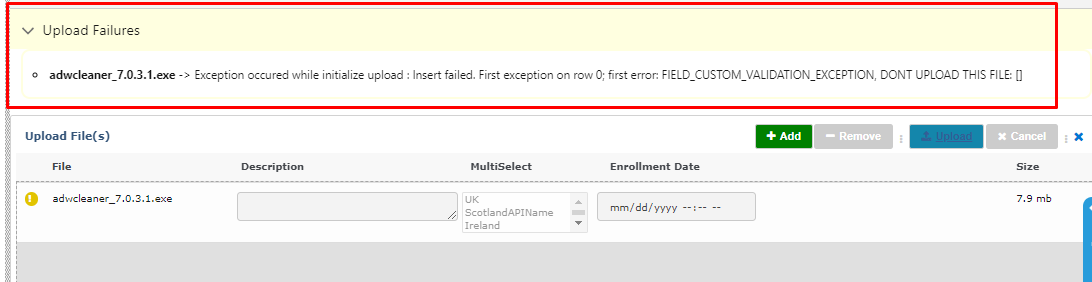
If you wish to use Legacy Upload, there is a checkbox for that when you configure S-Drive on your Lightning page.
Notifications to Admins when org is disconnected
When your org is disconnected, you can now receive an email notification.
-
Got to Setup-->Custom settings
-
Find SDriveEmailNotificationSettings and click Manage
-
If there is not already a setting called EmailList, create it
-
Click New
-
Name=EmailList
-
Value: add email addresses separated by a semi-colon, for example jane@abc.com;bob@abc.com
-
Click Save
-
Enhancements
S-Drive Email
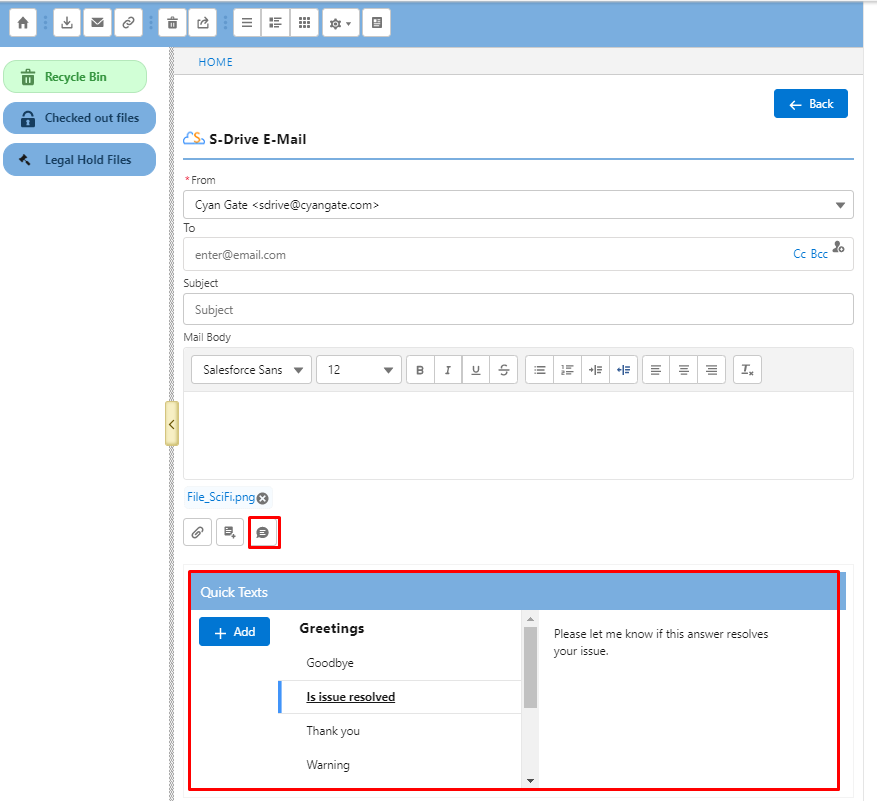
S-Drive email replaces the visualforce email page when using the email envelope icon on the S-Drive toolbar. It also have some enhancements.
-
Lightning Email templates are available
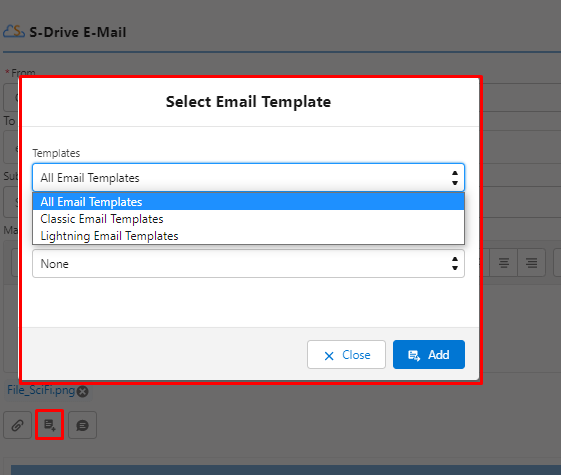
-
Quick Text is available
-
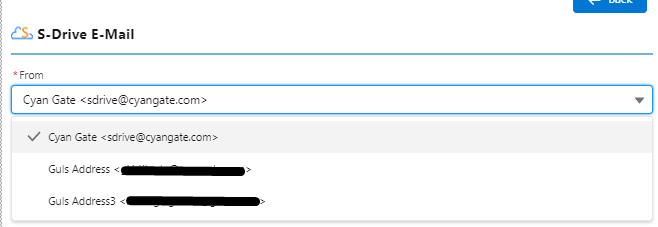
“From” field can be any org-wide email address
Content Authoring
-
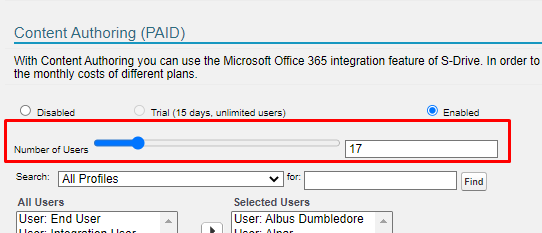
You can now choose any number of users between 1 and 100. Please contact Sales if you want more users.
-
Documents can now be downloaded to your desktop, downloaded as PDF, ODT (Word files), ODP or images (powerpoint files) or ODS (excel files)
-
Known issue--In Word files, during an editing session, if you download as PDF, then make more changes in the same editing session, and download again, the changes will not be there. Exit the session and then start a new online editing session to download the latest changes to pdf.
-
Bug Fixes
2.20
-
Fix child object list when attaching files to S-Drive email. It will now only show file objects.
-
Fix view when Preview and Thumbnail is disabled after being enabled. Return to List View
-
Fix folder icon in Thumbnail View
-
Fix error when sorting on Description or Tag field. Sorting is disallowed.
-
Fix Retention Policy null pointer error
2.20.1
-
Fix Zip and Download of large number of files fails with too many SOQL error
-
Fix cut/paste of large number of files fails with too many SOQL error
-
Improve error message when Bucket Id field is blank on initial configuration
-
Fix upload new version button shows on file detail page even when bucket is not versioned
2.20.3
-
Fix Transfer Acceleration Copy URL link not working
-
Fix Zip and Download hitting Salesforce limit
-
Fix Bulk Field Update error
-
Fix Lightning upload not working when “allowed file types” are specified
-
Fix SDrive Email Notification issue with payment job
Deprecated
Scheduled for removal in 2.21
-
Advance search
-
External Drive
-
My Drive
2.19 Release Notes
Release Date: 4/13/2022
Multiple Bucket Support, Online Editing for Digital Experience
Released 4/13/2022
Upgrade Notes
This release introduces Multi-Bucket Support. Even if you don’t use this feature, you will need to reconfigure your bucket when you upgrade. You will also need to add a new field to any custom file objects you have
Configure Bucket(s)
-
Go to S-Drive Configuration
-
Enter your Amazon Access Key and Secret Key and click Configure Amazon S3 Credentials
-
Choose to either create a new bucket or use an existing bucket. See INSTALLING AND ACTIVATING S-DRIVE for detailed steps.
Add new Bucket_Id__c field to custom file objects
This step needs to be done for file objects that did not come with S-Drive. The file objects that come with S-Drive (Account File, Case File, Contact File, Lead File, Opportunity File) already have this field.
-
Go to Setup-->Object Manager tab
-
Go to your custom file object
-
Go to Fields and Relationships
-
Click New
-
Choose Text for the field type
-
For the label, enter “Bucket Id”
-
For length, enter 255
-
Field Name will auto-fill as Bucket_Id
-
Click Next, Next, Save
⚠ Files you uploaded prior to this release will have a null Bucket ID field and will be assumed to be in the default bucket. If you configure more than one bucket, make sure the bucket you used prior to this upgrade is made the default bucket. If you want to use a different bucket as the default now or in the future, you must do a mass update of your files to populate the Bucket ID field with the bucket id of the bucket the files reside in. This would be an unusual scenario. Please open a ticket if you have questions.
If you use custom css in S-Drive Component
-
Some toolbar buttons were removed, so your custom css may not hide the same buttons. Display of toolbar buttons is all configurable now, so custom css should not be needed.
If you use Retention Policy
-
You may need to re-enable Records Management through custom settings
-
Go to Setup-->Custom Settings
-
Click “Manage” next to SDriveConfig
-
Click on RecordsManagementEnabled. If the value is false, edit it and set it to true
-
Click Save
-
-
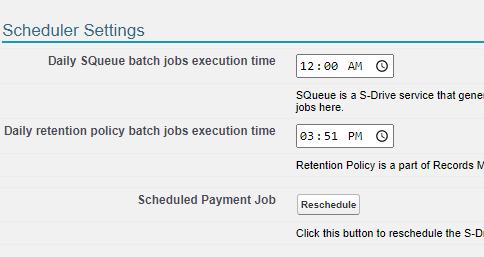
You may need to reset the scheduled time
-
Retention Policy now has its own scheduler, separate from SQueue. On upgrade, Retention policy may not automatically schedule. If you change the time it will get scheduled
-
Go to SDrive Configuration General Settings Tab
-
Scroll down to the Scheduler Settings.
-
Change the time for Retention Policy
-
-
Known issue: Email notifications for retention policy will hit Salesforce limits if there are a large number of files in the notification
If you use Content Authoring (Online Editing)
-
Add https://wopi.sdriveapp.com to your Remote Site Settings
New Features
Multi-Bucket Support
Multi-Bucket Support allows multiple AWS buckets to be configured in S-Drive. Files can be uploaded to a particular bucket based on rules you create in a field on the file object. Each time a file is uploaded, the user can either choose a bucket by filling in a field on the upload page, or the file will automatically be uploaded to a particular bucket based on some criteria you set up.
If no bucket is specified, the file will go to the default bucket, which is defined during bucket configuration.
See Multi-Bucket Support for more information
Multi-Bucket Support Limitations
-
File Sync will only sync files to the Default Bucket
If you have custom file objects, you must add a new field to you objects. See Add new Bucket_Id__c field to custom file objects in the Upgrade Notes above.
Enhancements
More Flexibility on S-Drive toolbar buttons
Display options for the toolbar buttons can be configured by Admins.

Redundant buttons (Select All and Sort By) have been removed, except in Grid View where there is not another way to select all or sort. The “import external files” button has been removed, since that feature has not been available for some time.

If you have custom css to hide buttons on the toolbar, it will no longer work because the buttons are in different positions (due to the removal of some.) You may no longer need to use css since all the buttons are now configurable.
For Views other than Grid, clicking on the checkbox can be used to Select All and clicking on a column header can be done to Sort.
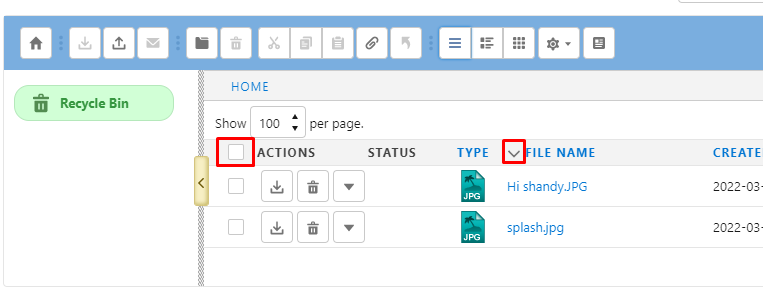
Content Authoring Enhancements
-
Content Authoring now uses Salesforce authentication, making setup of this feature much simpler, and allowing it to work for Digital Experience (community) users as well.
-
Content Authoring allows users to save a file as a PDF to their desktop
Bug Fixes
-
Fix when a multi-page file is copied, and Preview & Thumbnail is enabled, only its first preview page is copied to the new file
-
Fix previews are not uploaded to right place if bucket key prefix is enabled
-
Fix Error on search when CreatedDate is not a displayed column
-
Fix Salesforce files are not deleted after email-to-case S-Drive file sync.
-
Fix On Leads, empty folder is showing a question mark icon.
-
Fix User names not sorted on Content Authoring or S-Action
-
Fix LastModifiedBy user not shown as hyperlink in Lightning S-Drive component
-
Fixes to Retention Policy for better error handling and stability
2.17 Release Notes
Release Date: 1/31/2022
Translation, Column Width configuration
Released 1/31/2022
Upgrade Notes
Add File Objects to the File Object List
With this release, you must add file objects (Account File, custom file objects, etc) to a list in S-Drive Configuration. The addition of this list helps improve performance on the configuration pages and in some features.
If your file object is not on the list. it may not be fully accessible.
-
Go to S-Drive Configuration → General Settings tab
-
Scroll down to File Settings
-
Next to “S-Drive File Objects List” click the “Manage” button
-
When the new page opens,
-
either click Find File Objects to add file objects automatically.
-
Or click Add New Object Configuration
-
If you click Add New Object, you’ll see the following:
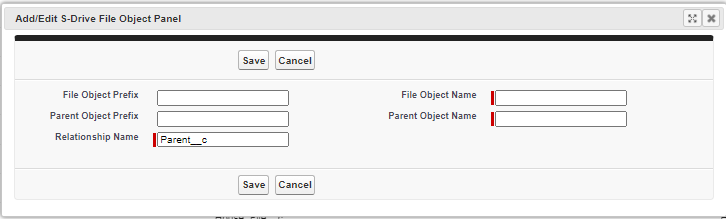
-
Enter the information in the boxes
-
File Object Prefix This will usually be blank. The out-of-the-box file objects have a namespace prefix of “cg__” for Cyangate (makers of S-Drive), but your custom file object should not normally have a prefix
-
File Object Name The API name of your custom object, such as My_Object_File__c
-
Parent Object Prefix Namespace prefix for parent object, which is the object your file object relates to. If your parent object is from a managed package, then it would have a prefix. If you created the custom object yourself, it won’t have a prefix.
-
Parent Object Name API name of the object your file object looks up to.
-
Relationship Name This should be “Parent__c” for custom file objects
-
-
Click Save
-
-
New Features
Performance upgrade
Custom S-Drive File Objects are now kept in a list so they are more easily retrieved. When you create a new file object, you will need to update a custom setting to add it to the list. See Add your Custom File Object to the S-Drive File Object List for instructions.
Translation
S-Drive is now translatable via Salesforce Translation Workbench
See https://cyangate.atlassian.net/l/c/S6tDCxcM for how to use translation for S-Drive.
Column header wrapping and column width configuration (Lightning only)
On the S-Drive Lightning Component, the Admin can use Custom Metadata Settings to specify whether column headings will wrap and can define column widths in pixels on a per-profile basis. See https://cyangate.atlassian.net/l/c/cJE043CG for details.
Folder cut and paste (Lightning only)
Folders can be cut and pasted to a new folder within the same record, just like files can be. Everything in the folder will be moved with it. A folder cannot be moved into one of its own subfolders.
Improvements
S-Action code can access “Back” event
When using S-Actions, if you want to go immediately back to the list of files in S-Drive once your S-Action is completed, you can now access the event behind the “Back” button in your code, so users don’t need to click “Back”. See https://cyangate.atlassian.net/l/c/m1GNnp80.
Recycle Bin, Legal Hold and Checkout Files buttons can be enabled and disabled
You can now decide whether to show or hide your S-Drive Recycle Bin, as well as Legal Hold and Checked Out Files buttons if using those features.
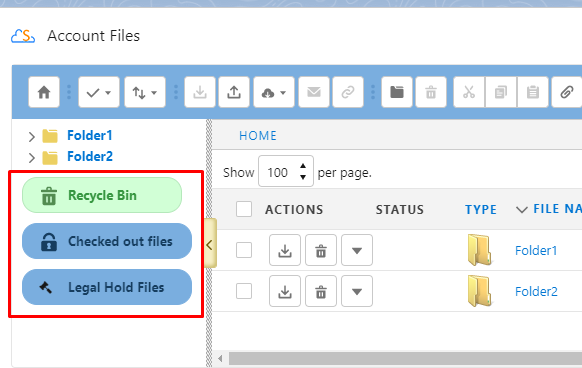
If Preview and Thumbnail is not enabled, Previews no longer shown on Detail page
If Preview and Thumbnail are not enabled, you will no longer see an gray box for a Preview on the file detail page.
Salesforce Enhanced Notes are no longer synced when using File Sync
You can now use S-Drive File Sync without running into problems with Salesforce Enhanced Notes. We omit Notes (file type .snote) from file sync. Notes are autosaved, which caused them to by synced and possibly deleted in the middle of typing a Note. In addition, it makes more sense for Notes, which may regularly be edited, to remain as a Salesforce file, rather than moved to S-Drive.
In Console View, refreshing the Console Tab will refresh the S-Drive component
Refreshing the browser page is no longer needed to refresh S-Drive. Refreshing the Console tab will refresh the S-Drive file list.
Fixes
-
Fix Preview and Thumbnail size. P&T for images are now smaller, rather than being generated at the same resolution as original image.
-
Fix Home Folder in Public Share folder tree so clicking on it returns to root level
-
Fix page navigation buttons are not visible on expanded previews on file detail. Buttons now show.
-
Fix copying/pasting and cutting/pasting to root level in a Public Share component is allowed. Users can no longer copy/paste or cut/paste to root level.
-
Fix null keys causing problems with Retention Policy.
-
Fix when file with unknown file type is synced, file extension is not included in the S-Drive file name
-
Fix file object missing from list on configuration page when generating previews for existing files
-
Fix files that are uploaded via REST API are downloaded when opened. Files will now be opened instead of downloaded.
-
Fix some special characters not working for Previews
-
Fix wrong file name with Copy URL download on Versioned Files. Copy URL will now show the current version’s file name.
-
Fix users with no S3Object permission can see files when clicking “Attach from S-Drive Folders” button. Button is now removed if user does not have permission to see S-Drive Tab files (S3Object.)
-
Fix folder icons always show question mark in Compact View. Folder icons now show empty, full, or unknown correctly.
-
Fix file upload fails if Preview and Thumbnail is enabled, but user doesn’t have Preview permission. File will now upload without a preview being created.
-
Fix delete confirmation message missing when using delete action menu. Confirmation message now shows when deleting using action menu just as it does when deleting using toolbar button.
2.16 Release Notes
Release Date: 12/1/2021
Support for KMS Encryption
Released 12/1/2021
Upgrade Notes
This release introduces support for AWS-KMS Encryption, which means an encryption type must now be configured. If you are upgrading from a previous version, check your encryption setting after upgrading:
-
Go to S-Drive Configuration--S-Drive Authentication Settings tab
-
If the File Upload Encryption Type is blank, click “Click here to update”

-
Enter your AWS Access Key and Secret key and click “Configure Amazon S3 Credentials.”
-
Choose the type of encryption you want from the File Upload Encryption Type dropdown list. S3-Managed Keys (SSE-S3) is the default and is recommended unless you’re using S3-KMS. See below for more information.
-
Click “Configure Amazon S3 Bucket Name”
-
After the success message you can click “cancel” to get back to the S-Drive Authentication Settings tab and see File Upload Encryption Type is filled in
New Features
Support for AWS-KMS Encryption
Previously, S-Drive only supported file encryption using Amazon S3 key (SSE-S3). You can now choose AWS Key Management Service key (SSE-KMS) using AWS managed key. See additional information in the Admin Guide S-Drive Authentication Settings.
In AWS, you can choose your your bucket encryption setting. See Setting default server-side encryption behavior for Amazon S3 buckets for more information.
In AWS Console:
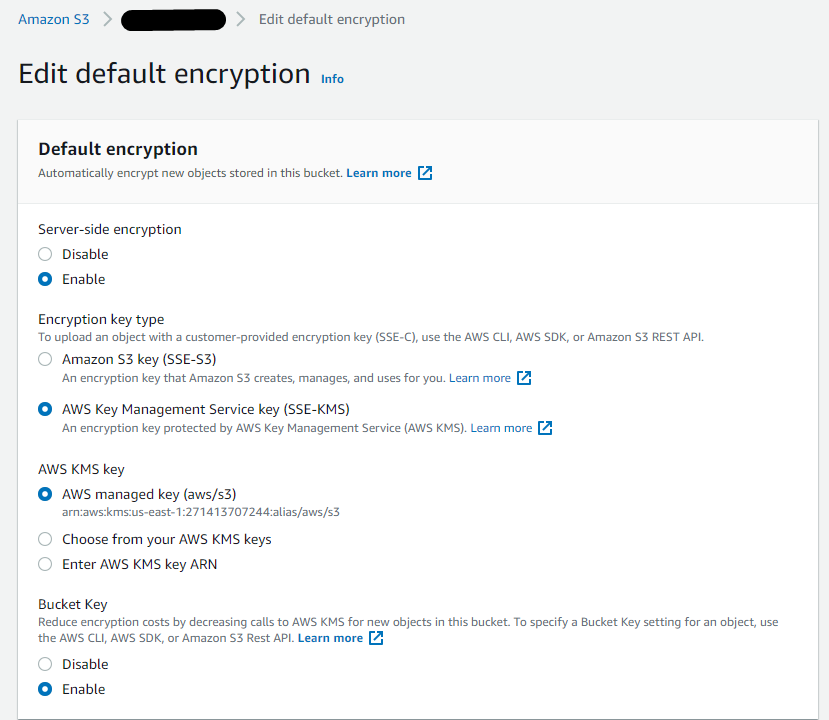
In S-Drive Configuration, configure the File Upload Encryption Type you’d like to use. It will override the bucket encryption if it is different.
In S-Drive Configuration:
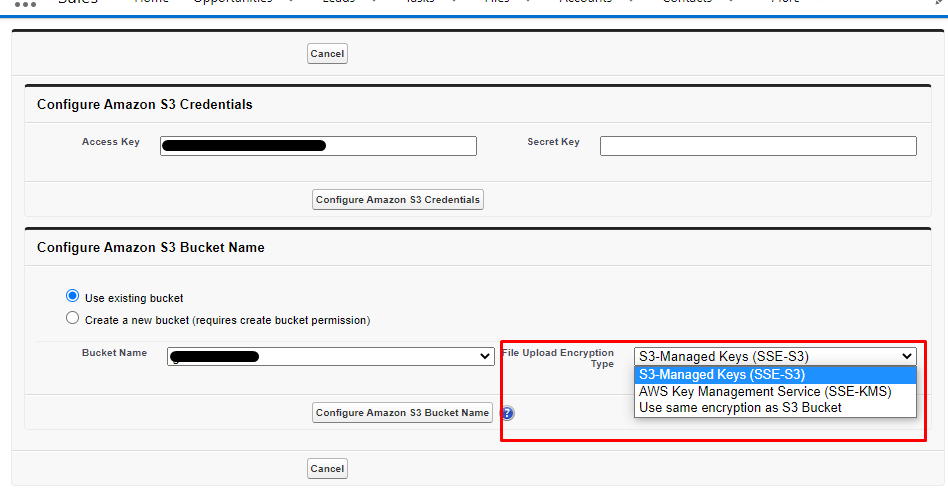
This matrix shows what encryption is used depending on your Bucket settings and S-Drive settings. The default S-Drive setting is S3-Managed Keys (SSE-S3)
|
Bucket Encryption ➡
|
Disable |
Enable/Amazon S3 Key (SSE-S3) |
Enable/AWS Key Management Service key (SSE-KMS) |
|---|---|---|---|
|
S3-Managed Keys (SSE-S3) |
SSE-S3 |
SSE-S3 |
SSE-S3 |
|
AWS Key Management Service (SSE-KMS) |
SSE-KMS |
SSE-KMS |
SSE-KMS |
|
Use same encryption as S3 Bucket |
No Encryption |
SSE-S3 |
SSE-KMS |
Email Threading for S-Drive Email Component
Email sent using S-Drive email component will now show replies on the Activity timeline when using Email-to-Case
Improvements
Enable Field attribute changed to Enable Field Selection
The label “Enable Field” was confusing.
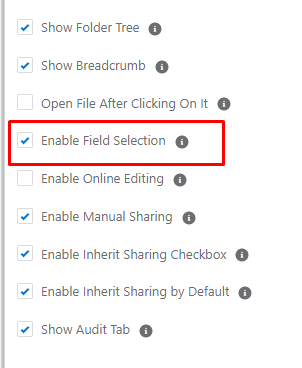
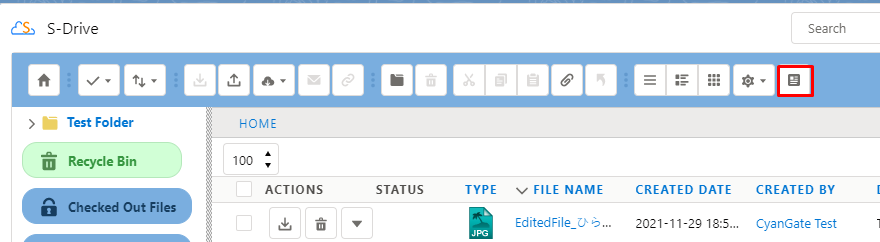
This attribute controls the field selection button on the toolbar.
Fixes
-
Fix Date field shows date and time in S-Drive--now only shows date
-
Fix custom date field causes error if null
2.15 Release Notes
Release Date: 11/12/2021
Folder icon shows empty/not-empty
Released 11/12/2021
New Features
Folder indicator to show empty or not empty (Lightning Experience only)
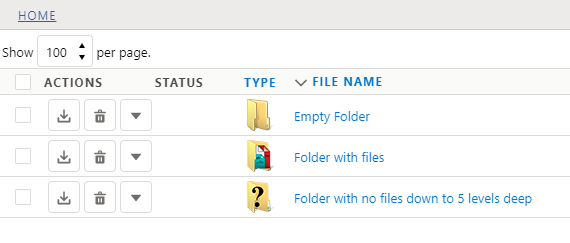
Folders now show if they are empty or not, down to 5 subfolders deep. The folder displays as empty if there are only empty subfolders in it, but no files.
If there are no files in 5 levels, but there are subfolders that go deeper, folder with a question mark will be shown to indicate that we don’t know if it is empty or not at deeper folder levels.
Improvements
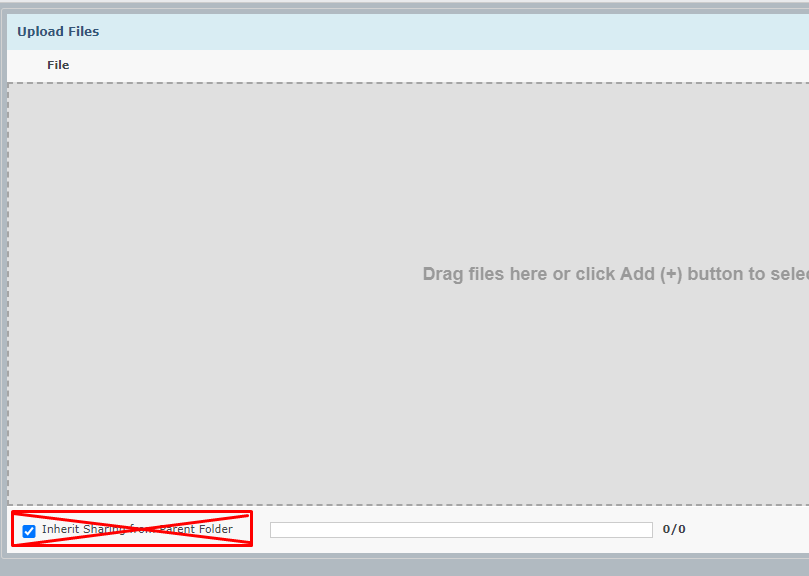
Public Share Upload: Component no longer shows “inherit sharing from parent” checkbox
In a Public Share access component, “inherit sharing” should not be an option since Public Share is for non-Salesforce users. The Public Share component no longer shows the 'inherit sharing” checkbox (which was only shown on file objects with a lookup relationship to the parent), but files uploaded into a folder in a Public Share window will inherit the sharing of the folder.
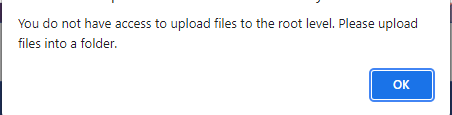
Public Share Upload: Drag and Drop will not allow file to be dropped at top level
Files uploaded in a Public Share component must be uploaded into a folder. However Drag and Drop was not following this rule. Now, if you try to drag and drop at the top level, you will see an error message telling you to upload into a folder.
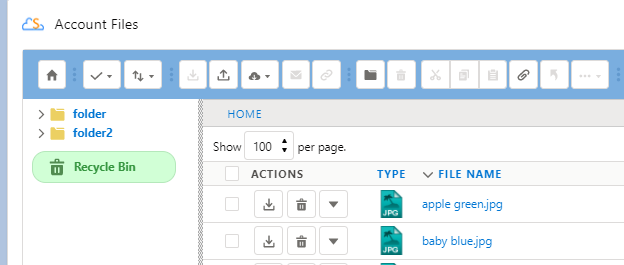
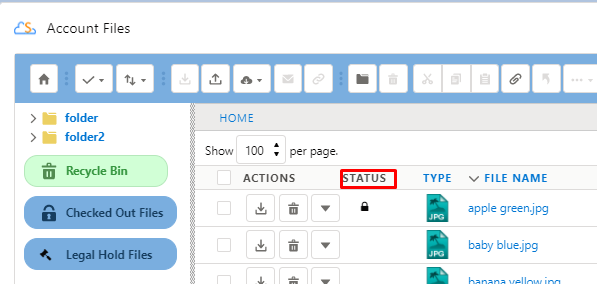
Hide Status Column if not needed
Status column on S-Drive Lightning Component will only be shown if Check-in/Check-out, Legal Hold, or Edit Online is enabled.
Fixes
-
Fix “upload new version” action showing when Upload is disabled in component configuration. “Upload New Version” will no longer show.
-
Fix duplicate file error message even though there are no duplicates, when files are renamed/copied/moved to root level (when duplicates are disallowed through configuration). Files can now be renamed/copied/moved to root level if there are no duplicate files without getting an error.
-
Fix duplicate file error message when file is restored from recycle bin and file exists on a different record (when duplicates are disallowed through configuration). files can now be restored from the recycle bin if there are no duplicate files without getting an error.
-
Fix email threading when using Email action in S-Drive component. Email responses will now show up in Activity timeline
2.14 Release Notes
Release Date: 10/28/2021
Online Editing
Released 10/28/2021
New Features
Content Authoring--Microsoft Office Integration
Microsoft Office Integration is here! You can now edit Microsoft Word, Excel, and PowerPoint documents without having to download them from S-Drive.
Watch the Demo Video https://www.youtube.com/watch?v=EpkfxBvxzSg&list=PLOYOFI039X6Ww_QlHOtjTT7fdz_iLZCqz&index=28&t=2s
When this feature is enabled, users can open these files from the Action menu in S-Drive.
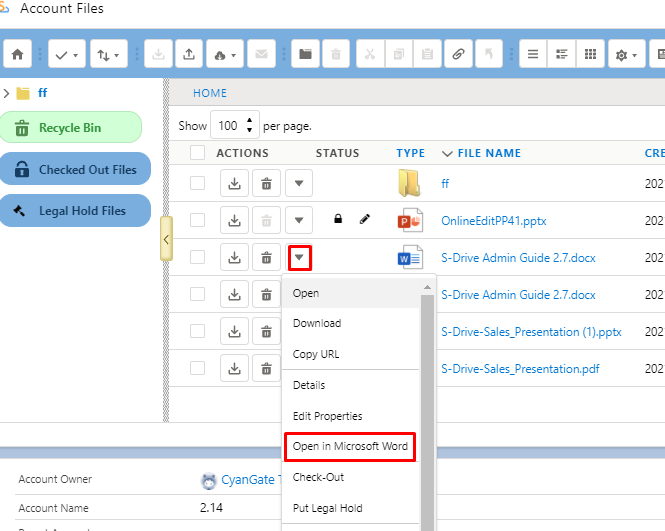
The document will open Office for the web and allow editing. Changes are autosaved during the editing session. When the editing session is complete, the document is stored in S-Drive as a new version. See https://cyangate.atlassian.net/l/c/dbnc2DRS for details.
Please Note
Microsoft Office Integration is not yet ready for Experience Cloud. Please do not enable in your customer community.
Documents up to 100 MB can be edited.
Enhancements
A New Way of Connecting to S-Drive Portal
This release gives you the option to change the way we retrieve your total file storage that we use for billing. Users will not see any changes.
In previous releases, the user that connects S-Drive to the portal had to be an System Administrator with Modify All Data and Customize Application permissions.
With this release, the initial connection must still be done by a user with those permissions, but once that connection has been established, those permissions can be removed if desired. The Admin (with Modify All Data and Customize Application permissions) will simply need to click a button on the S-Drive Configuration page to kickoff a batch job. See https://cyangate.atlassian.net/l/c/H0h5ryQu
Compact View download button on toolbar
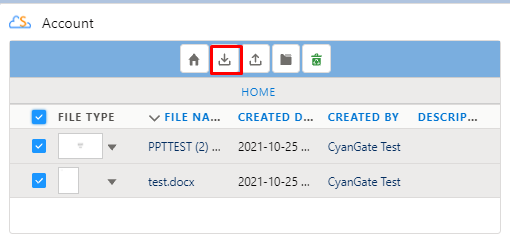
The download button is now available on the toolbar when using Compact View on Desktop, so you can download multiple files at once. It is not available on Mobile, where selecting multiple files is not possible.
2.12 Release Notes
Release Date: 9/24/2021
Usability improvements and bug fixes
Release Date: 9/24/2021
Enhancements
-
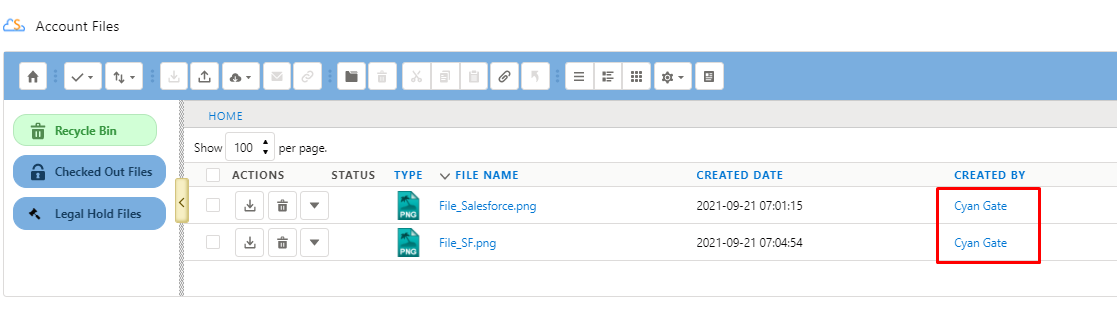
In Lightning, CreatedBy user is now shown as a hyperlink as it is in Classic
-
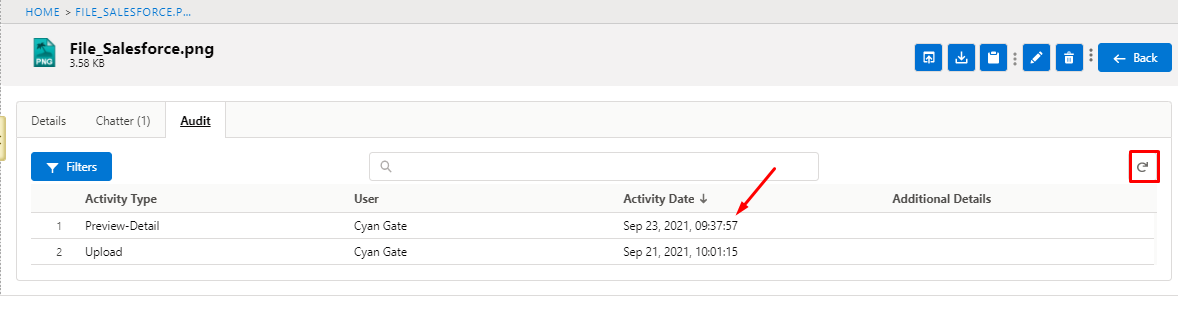
Audit Tab (in File Detail) now has a refresh button and the Activity Date now shows the time as well as the date.
-
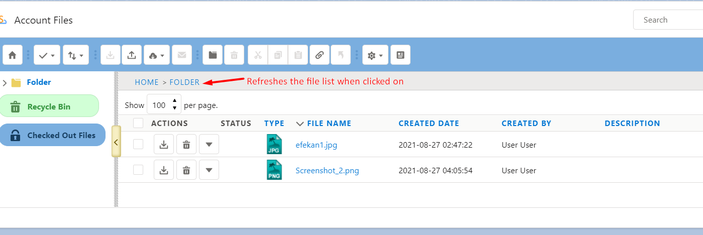
Clicking on Folder name in breadcrumbs refreshes the file list for that folder
-
When sending email from S-Drive component, searching in the “To” field is now easier with a type-ahead search
Bug fixes
-
Fix metadata not captured on large (multipart) file upload
-
Fix Bulk sharing gives error when sharing more than one folder with subfolders
-
Fix Classic: S3Object Read permission needed to upload files to other objects
-
Fix Lightning: Buttons slide over preview image on smaller screens
-
Fix file size is displayed for Folders on custom objects. File size field is now blank.
-
Fix “attempt to dereference null object” if attributes are missing on custom lightning component
-
Fix Audit Tab sorting gives error
-
Fix S-Drive email “To” search field only shows 25 users/contacts. Now shows 1000.
-
Fix Classic: Drag and Drop not always showing dropped file
-
Fix File Activity: upload not showing as an activity
2.11 Release Notes
Release Date: 9/9/2021
Bucket Folders, User-defined Metadata, Duplicate File Upload
Release Date: 9/9/2021
New Features
S-Drive has two new features that give you more control over your AWS S3 bucket.
Bucket Folders
Bucket Folders allow you to define where files are stored in your AWS bucket.
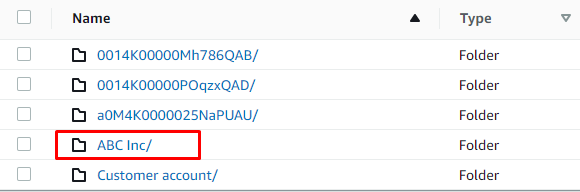
Files are stored in AWS using a folder path that is stored in the Key field in the file objects as shown on the left. In the AWS bucket the first part of the key is the top level folder as shown on the right.
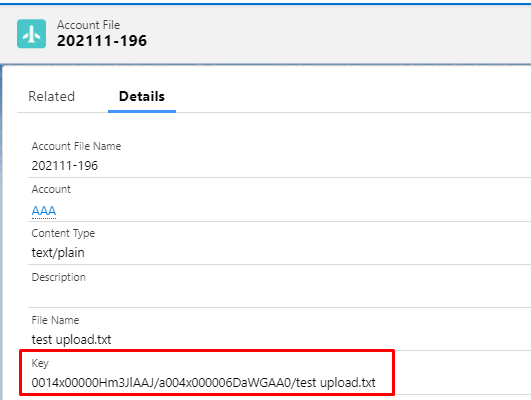
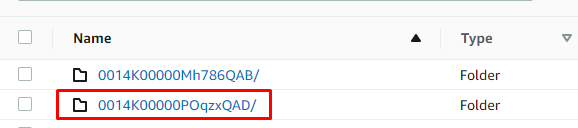
Most users only interact with S-Drive files using the S-Drive user interface, so the location of files in AWS is not important to them. However if you want to see your files in the AWS bucket, it can be difficult to find them because of the file path that is used by default.
Using a Bucket Folder makes seeing and organizing your files in AWS easier by allowing you to define the top folder of the path as shown below. Read more in our Admin Guide.
User-Defined Metadata
Files stored in an AWS S3 bucket can have user-defined metadata that is set when files are uploaded. S-Drive allows you to configure metadata key-value pairs that will be assigned when files are uploaded using S-Drive. You can configure Global metadata that will be included with all files and you can also configure metadata for each object file, such as AccountFile, CaseFile or custom object files. Refer to AWS documentation for more information about metadata. For more information about this S-Drive feature, read more in our Admin Guide.
Enhancements
Duplicate File Upload
You can now configure whether you want to allow files with the same name to be uploaded to the same folder (or at the root level.) This can be configured in S-Drive Configuration under the General Settings Tab. See Upload Settings for more information.
Chatter File Sync
When File Sync is configured to delete files after syncing, this causes files in Chatter to seemingly disappear. Now when Chatter files are synced to S-Drive there will be a message in Chatter that files have been synced to S-Drive and a comment will contain the names of the files. See File Sync with Chatter for more information.
2.9 Release Notes
Release Date: 7/14/2021
2.9.1 Release Notes
2.8 Release Notes
Release Date: 5/27/2021
Improvements to S-Actions, Manual Sharing, Preview and Thumbnail and more
S-Action Configuration enhancements
Preview and Thumbnail Configuration enhancements
S-Action Configuration enhancements
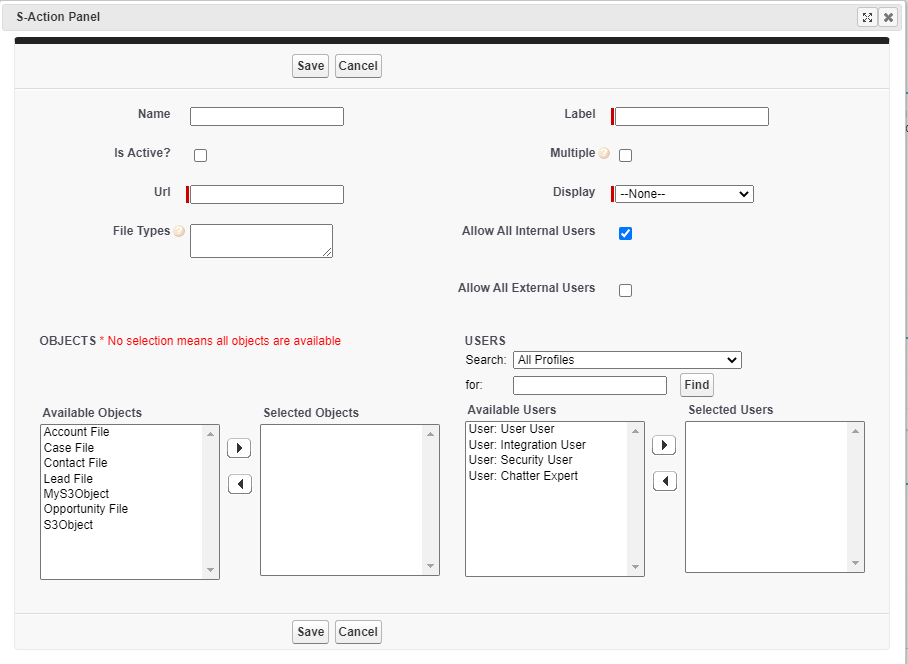
It’s now easier to configure who can see S-Actions. Checkboxes allow you to choose all internal users and/or all external users. Or you can individual users and filter by Profile to easily find them.
In previous releases, leaving the “selected users” list blank made the S-Action visible to all users. This is no longer the case. Please check your S-Action configurations under S-Drive Configuration Micro Services tab.
Manual Sharing enhancements
Manual sharing of files and folders (allowed when there is a lookup relationship from the file object to the parent, instead of Master-Detail) is now easier.
If you upload a file into a folder, or you create a subfolder, you can now choose to have the file or subfolder inherit the sharing of the parent folder.
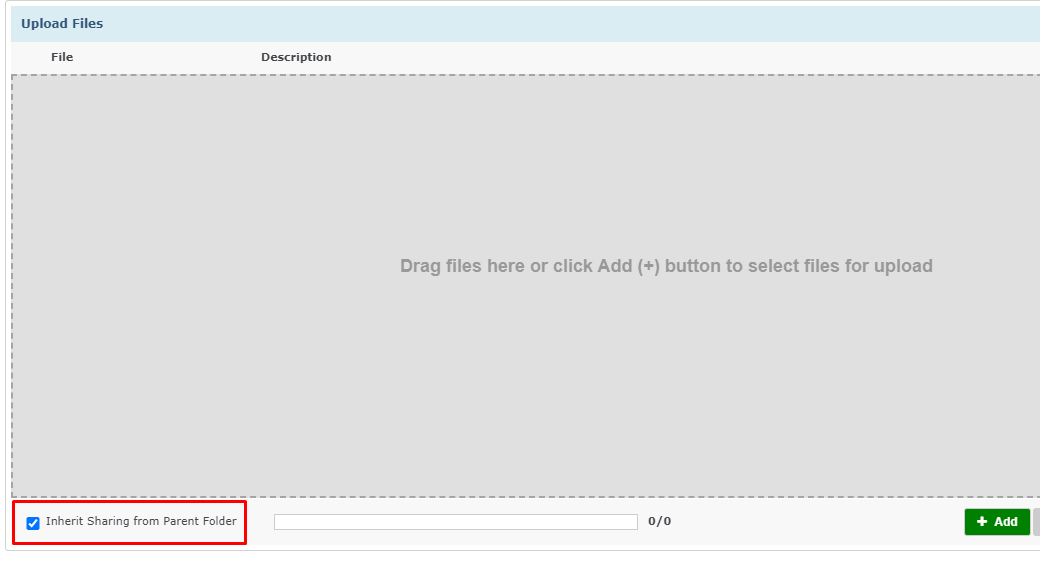
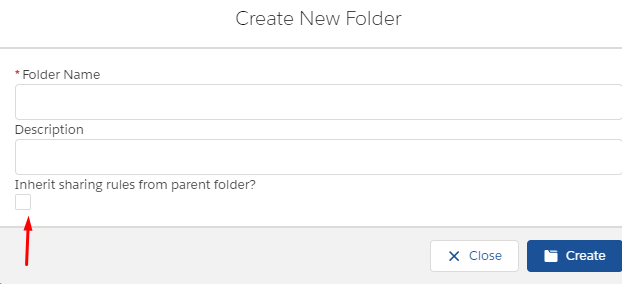
If you share a folder, you can choose to have the sharing rule apply to all the subfolders and files inside that folder.
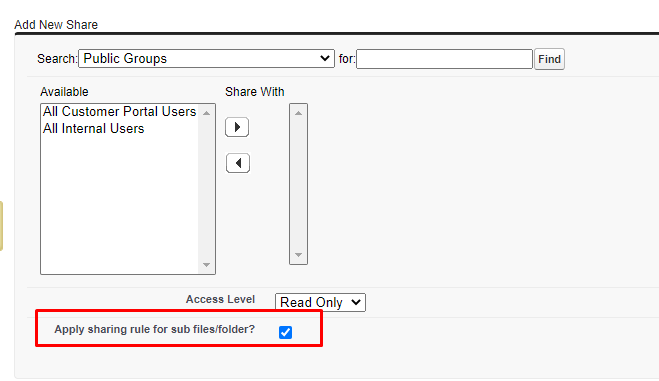
These features were already available for S-Drive tab, but are now also available for files on objects as well if there is a lookup relationship.
Preview and Thumbnail Configuration enhancements
Admins can now control how many pages of previews should be generated for each object and file type. You can set a maximum preview page count for the object and then have overriding page counts for different file types. For example, you can set the maximum page count to 20 for Accounts, but within Accounts you can set the maximum page count for pdf files to 10.
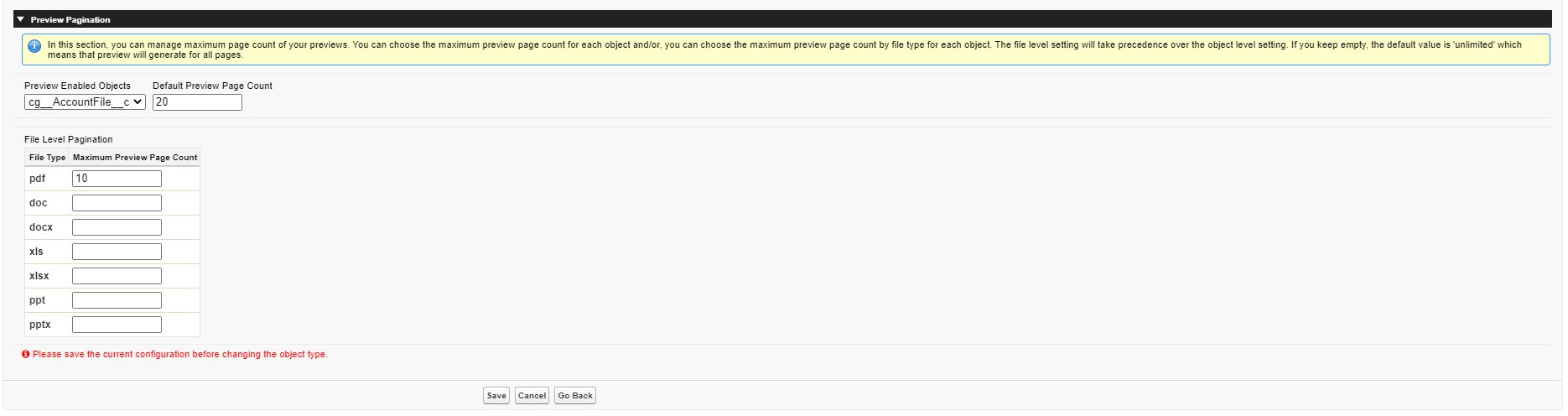
Setting maximum page counts can save you money on Preview conversion.
File Activity
File Activities will now log when a manual share rule is deleted.
API Upload fix
SDriveTools.InitializeUpload has been updated to work with Amazon AWS changes.
2.8.1 Release Notes
Performance improvements and bug fixes
Bug fixes and performance enhancements
-
createPublicDownloadLink method fixed
-
S-Drive component will load faster in Classic
Manual Sharing enhancements
Release 2.8.1 adds configuration settings to the Inherit Sharing checkboxes described below. First, a review of the feature:
From Release 2.8:
Manual sharing of files and folders (allowed when there is a lookup relationship from the file object to the parent, instead of Master-Detail) is now easier.
If you upload a file into a folder, or you create a subfolder, you can now choose to have the file or subfolder inherit the sharing of the parent folder.
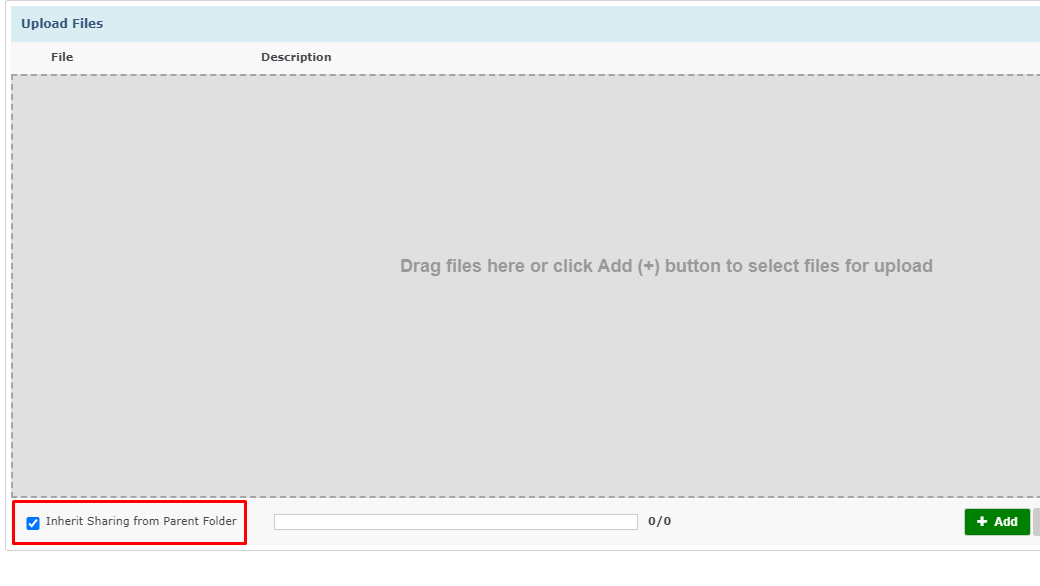
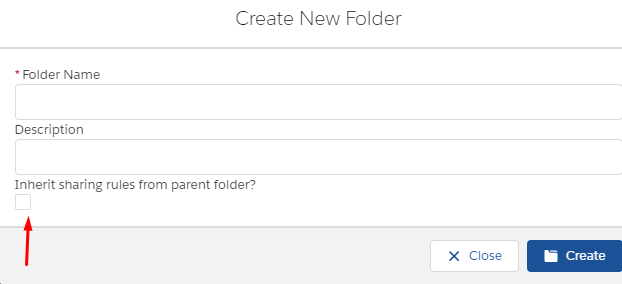
If you share a folder, you can choose to have the sharing rule apply to all the subfolders and files inside that folder.
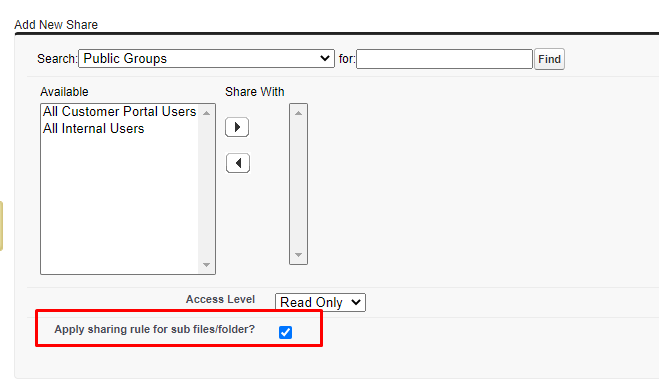
These features were already available for S-Drive tab, but are now also available for files on objects as well if there is a lookup relationship.
What’s New in 2.8.1?
In 2.8.1, you can choose whether the checkbox has a default of true or false and you can choose whether to show the checkbox to your users or not.
S-Drive Tab Configuration
To configure this on S-Drive Tab, go to S-Drive Configuration General Settings tab.
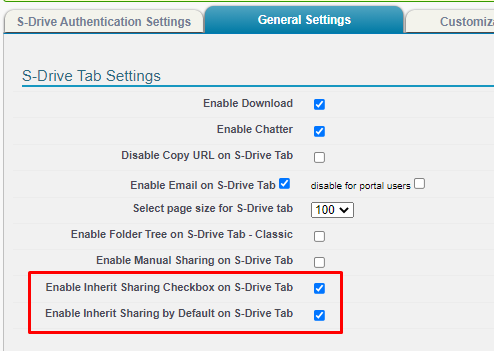
Enable Inherit Sharing Checkbox on S-Drive Tab controls whether the Inherit Sharing checkbox is shown or hidden when creating subfolders and uploading files. If checked, it is shown.
Enable Inherit Sharing by Default on S-Drive Tab controls whether the Inherit Sharing checkbox is checked or unchecked by default. If you hide the Inherit Sharing checkbox, you still need to use this setting to determine whether Inherit Sharing is true or false when subfolders are created and files are uploaded.
Object file configuration
To configure these settings for file objects (Account File, Contact File, etc including custom file objects) edit the lightning page and click in the S-Drive Lightning component.
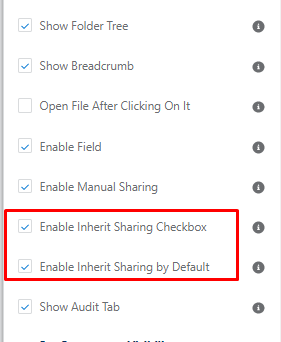
Enable Inherit Sharing Checkbox controls whether the Inherit Sharing checkbox is shown or hidden when creating subfolders and uploading files. If checked, it is shown.
Enable Inherit Sharing by Default controls whether the Inherit Sharing checkbox is checked or unchecked by default. If you hide the Inherit Sharing checkbox, you still need to use this setting to determine whether Inherit Sharing is true or false when subfolders are created and files are uploaded.
2.7 Release Notes
Release Date: 9/25/2020
2.7.14 Release - file sync for private files, hide audit tab and other controls
Enhancements:
1. Removed “Attach from S-Drive Folders” toolbar button in Public Share Access link
In an S-Drive Lightning component on objects (not on S-Drive Tab), there is a button (attach from S-Drive Folders) that allows you to copy files from S-Drive Tab. This button was displayed in public share access links, but does not make sense for Public Share. The button has been removed.
Before 2.7.14
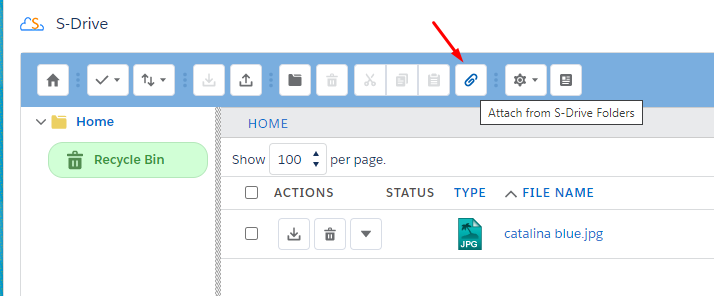
With 2.7.14

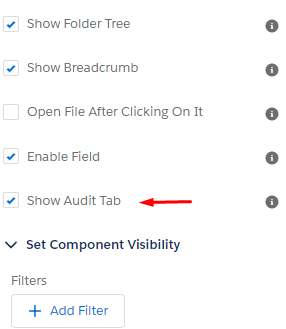
2. Allow Audit Tab to be hidden
You can now choose whether to show the Audit tab when configuring the S-Drive Lightning Component. If you want to show the tab for System Admins, but not for other users, you can use Component Visibility.
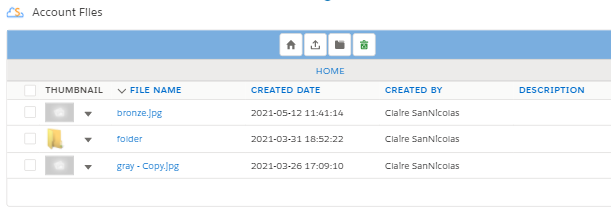
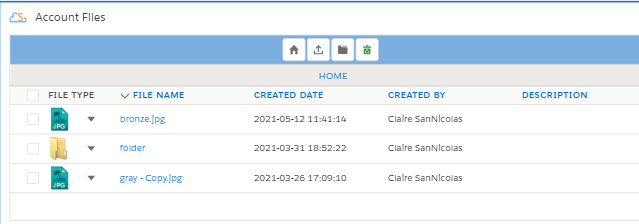
3. Hide thumbnails in Compact View if Preview & Thumbnail is not in use
Previously, a blank thumbnail was shown in compact view if Preview & Thumbnail was not turned on. Now it will display without the blank thumbnail.
Before 2.7.14:
With 2.7.14:
4. File Sync sets “private” flag based on file visibility
This change affects all releases, but was added with at the same time as the 2.7.14 release.
S-Drive can be configured to move or copy Salesforce files to S-Drive using the file sync feature. Previously, files that were synced could be seen by community users. Now, the Private field on the S-Drive file will be set according the the visibility of the Salesforce file. If the Private field is true, only internal users can see the file. If the Private field is false, community users can see the file as well as internal users.
On the uploaded Salesforce file
-
if the visibility is InternalUsers, the Private field is set to true.
-
if the visibility is AllUsers, the Private field is set to false
-
if the visibility is SharedUsers, the file will not by synced.
See this Salesforce guide for more information about the Visibility field and how it is set in Salesforce files.
For older Release Notes, visit https://www.sdriveapp.com/release-notes/