Public Share lets you securely share S-Drive files with people outside of Salesforce, and let them upload files back to you. S-URL (short URL) creates the short links that Public Share and Copy URL use. Public Share requires S-URL.
When to use it
-
Send files to a client or partner who doesn't have a Salesforce login.
-
Give someone outside Salesforce a folder where they can browse, download, or upload files.
-
Share a link that lasts longer than 7 days, or that works in email programs that break long links.
How it works
Without S-URL, file links are long Amazon S3 URLs. They cause problems in some mail programs such as Microsoft Outlook, they're hard to share, and they expire after 7 days at most. S-URL replaces them with short links that can last much longer.
Public Share vs. Copy URL
Both Copy URL and Public Share are in the file action menu, and both create a link you can send to someone. What you get depends on whether S-URL is set up.
If S-URL is not set up:
-
Public Share doesn't appear in the action menu.
-
Copy URL creates a long Amazon S3 URL that lasts a maximum of 7 days.
If S-URL is set up:
-
Public Share appears in the action menu.
-
Copy URL and Public Share both create short URLs, and both links can have an expiration date.
-
Copy URL is only for downloading. It creates a single download link.
-
Public Share has more options. It can create a download link or an access link that shows the files in an S-Drive component, where the recipient can browse folders and download one or more files. It can also have a password and IP range restrictions, and can let the recipient upload files and edit metadata.
|
|
Copy URL without SURL enabled |
Copy URL with SURL enabled |
Public Share (only available with SURL enabled) |
|---|---|---|---|
|
Long URL |
Yes |
N/A |
N/A |
|
Short URL |
N/A |
Yes |
Yes |
|
Expiration date |
Yes, up to 7 days |
Yes, up to forever |
Yes, up to forever |
|
Download link |
Yes |
Yes |
Yes |
|
Access link (files shown in an S-Drive component; recipient can browse folders and download one or more files) |
No |
No |
Yes |
|
Password |
No |
No |
Yes |
|
IP range restriction |
No |
No |
Yes |
|
Recipient can upload files |
No |
No |
Yes* |
|
Recipient can edit metadata |
No |
No |
Yes* |
* Not available with Legacy S-URL. See Before you start.
Using Public Share
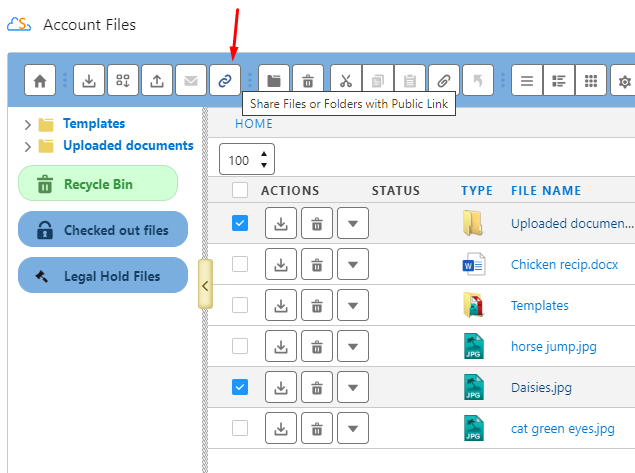
Select files and click the Public Share button.
A popup will open where you can choose to create a link that will download files immediately (download link) or show the files in an S-Drive component (access link), where the recipient can open or download the file, and depending on configuration, can upload a new file.
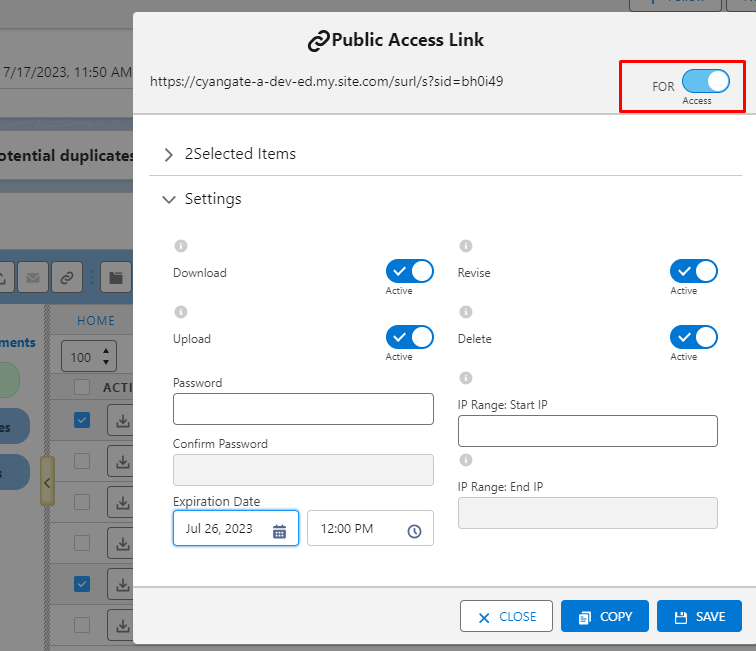
You can choose the actions that are permitted (Download, Upload, Revise, and Delete), provide a password (which will need to be sent separately to the recipient), restrict access to an IP range, and specify an expiration date for the link.
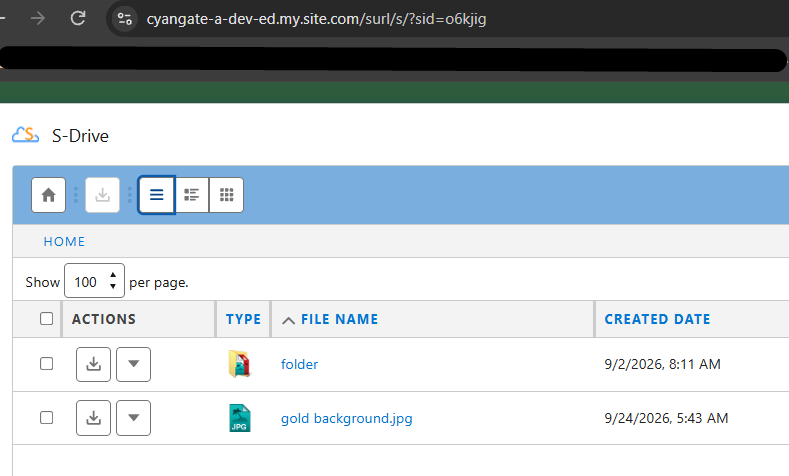
An S-URL link will be created, which you can share outside of Salesforce. With an access link, the recipient will see the files in an S-Drive component. Uploads can be done into the provided folder.
Set it up
Before you start
There are two ways to set up S-URL and Public Share:
-
S-URL (recommended): uses a dedicated community and a single dedicated community user. Recipients who aren't logged in can open, download, upload and delete files, and edit metadata, depending on the link's settings. See S-URL and Public Share Setup.
-
Legacy S-URL: uses a Force.com site with a Guest User license. A simpler setup if you only need download links. Recipients can open and download files, but can't upload, delete, or edit metadata because of Guest User license limits. You may need to buy a Force.com Sites license. See Legacy S-URL.
Setup checklist
-
Set up the community or site in Salesforce using S-URL and Public Share Setup or Legacy S-URL.
-
Turn on S-URL and enter the base URL in Services › S-URL.
-
Optional: require a password or expiration date on all Public Share links in S-URL Settings | Always require a password for Public Share.
-
Optional: customize the look of the Public Share page. See Step 9 of S-URL and Public Share Setup.
Limitations and notes
-
With Legacy S-URL, recipients can only open and download files.
-
S-URL can also be used when Salesforce users open or download files internally, but this isn't recommended. See S-URL Settings | Enable S URL For Internal Download (not recommended).