Turn on S-URL so S-Drive creates short links, and set the options for Public Share links. S-URL needs a community or site set up in Salesforce first. For the full setup, see S-URL and Public Share Setup. To learn what S-URL and Public Share do, see Public Share using S-URL.
Getting here: App Launcher › S-Drive Configuration › Services › S-URL
Setup Overview
Setting up S-URL is a more involved process than most S-Drive features, and as such, there is a separate document for the full setup. This page only covers the settings in the S-URL configuration in S-Drive Configuration. Each setting is explained in Settings Details.
-
Set up S-URL in Salesforce first.
-
Use either S-URL and Public Share Setup or Legacy S-URL depending on your needs. See Public Share using S-URL (short URL) | Before you start
-
Both guides in Step a cover the remaining steps here.
-
-
In the S-URL section of the Services tab, check Enable S-URL.
-
Enter the S-URL Base URL.
-
Optional: enter the S-URL Custom CSS URL and S-URL Custom JS URL to customize the Public Share page.
-
Optional: choose whether Public Share links always need a password or an expiration date.
-
Click Save.
Settings Details
S-URL
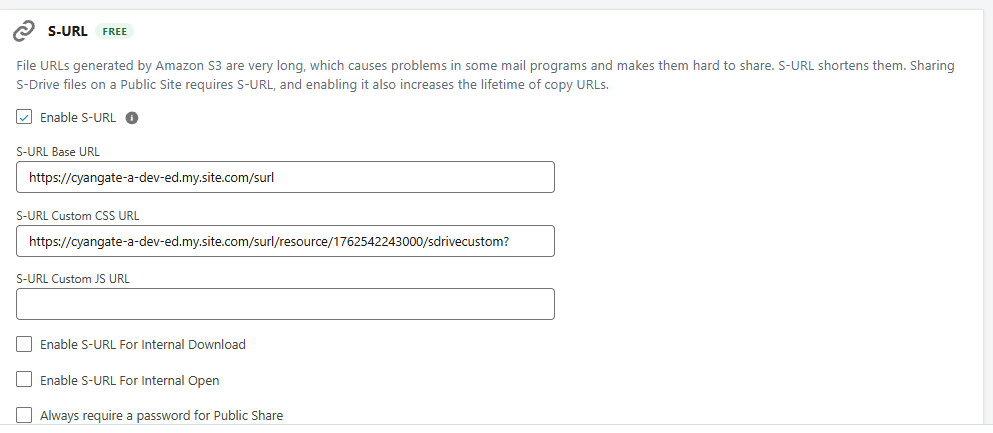
Enable S-URL Turns on short URLs for Copy URL and turns on the Public Share action. Without it, Copy URL creates long Amazon S3 links that last a maximum of 7 days, and Public Share isn't available.
S-URL Base URL
-
The URL of the community or site you set up for S-URL. For example:
https://yourdomain.my.site.com/surl -
Don't include
/sat the end, even though Experience Builder shows it. -
To find it, go to Setup › Digital Experiences › All Sites.
S-URL Custom CSS URL Optional. The URL of a CSS static resource named sdrivecustom, used to customize the look of the Public Share page. See Step 9 of S-URL and Public Share Setup for how to build the URL.
S-URL Custom JS URL Optional. The URL of a JavaScript static resource named sdrivecustomscript, used to customize the Public Share page. See Step 9 of S-URL and Public Share Setup.
Enable S-URL For Internal Download (not recommended) Uses S-URL instead of long Amazon S3 URLs when Salesforce users download files. There's generally no reason to turn this on. If it's on and something changes in your S-URL setup, users may have trouble downloading files.
Enable S-URL For Internal Open (not recommended) Uses S-URL instead of long Amazon S3 URLs when Salesforce users open files. There's generally no reason to turn this on. If it's on and something changes in your S-URL setup, users may have trouble opening files.
Always require a password for Public Share Makes the password field required when users create a Public Share link. They can't copy the link until a password is entered and saved. See Public Share.
Always require an expiration date for Public Share Makes the expiration date required when users create a Public Share link. They can't copy the link until an expiration date is entered and saved. See Public Share.
Learn about this feature: Public Share using S-URL