
Choose which objects and file types get previews and thumbnails, how many pages are previewed, monitor and retry conversions, and generate previews for files uploaded before Preview and Thumbnail was turned on. To learn what Preview and Thumbnail does, see Preview and Thumbnail.
Getting here: App Launcher › S-Drive Configuration › Services › Preview and Thumbnail › Configure
Setup Overview
These are the steps at a glance. Each setting is explained in Settings Details.
-
Open the Preview & Thumbnail page (see above).
-
Under Objects Configured for S-Drive, check Enabled for each object that should have previews and thumbnails.
-
Under File Types & Preview Pagination, choose an Object, then:
-
Move the file types you want from Available to Allowed.
-
Set the default number of preview pages, and override it for specific file types if needed.
-
-
Click Save. Save before switching to another object in File Types & Preview Pagination.
-
Optional: generate previews for files that were uploaded before you turned this on, in Generate Preview and Thumbnail of Pre-existing Attachments.
Preview and Thumbnail also needs permissions and an outbound message user set up in Salesforce. See Set it up on the feature page.
Settings Details
Objects Configured for S-Drive
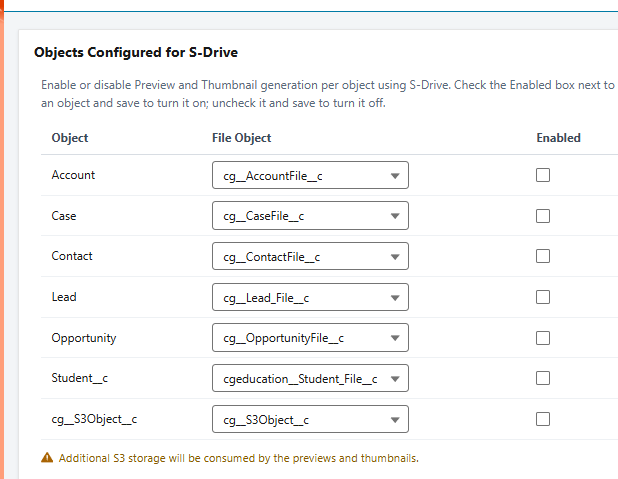
One row for each object that uses S-Drive.
File Object The S-Drive file object for that object.
Enabled Turns on preview and thumbnail generation for files uploaded to that object. Check or uncheck it, then click Save.
Previews and thumbnails use additional AWS S3 storage.
File Types & Preview Pagination
Choose which file types get previews and thumbnails, and how many pages are converted. You set these for one object at a time. S-Drive already allows some common file types.
Object The object you're configuring. Save your changes before choosing a different object.
File Type Selection Only file types in Allowed get previews and thumbnails. Move file types between Available and Allowed.
Pagination The default number of pages that get previews for this object. To use a different number for a file type, enter it next to that file type.
For example, if the default for AccountFile is 20 and pdf is set to 10, pdf files get previews for pages 1 to 10, and other file types get up to 20 pages.
Preview and Thumbnail Generation Status
Shows the status of preview and thumbnail conversions, and lets you retry any that failed. For more detail on failed items, check the Preview object.
Generate Preview and Thumbnail of Pre-existing Attachments
Generates previews and thumbnails for files uploaded before Preview and Thumbnail was turned on. The object must be enabled and the file types allowed first.
Objects Choose the objects to process.
Date range Optional. Only files created in that period are processed. Leave both dates blank to process all files on the chosen objects.
If you have a lot of files, process one object at a time, use a date range, or both.
Learn about this feature: Preview and Thumbnail