
Add S-Actions, the custom actions that appear in the S-Drive action menu, and choose who can use them and where. To learn what S-Actions do, see S-Actions (Custom Actions).
Getting here: App Launcher › S-Drive Configuration › Services › S-Action
Before you start: each S-Action runs a Visualforce page, Lightning component, static resource script, or web page that a developer has already written. You'll need its name or URL, and to know which display type it was built for.
Setup Overview
These are the steps at a glance. Each setting is explained in Settings Details.
-
In the S-Action section of the Services tab, click Add S-Action.
-
On the Add S-Action page, enter a Name and Label.
-
Enter the URL of the page, component, script, or web address the action runs, and choose its Display type.
-
Choose whether the action is Active and whether it works on Multiple files.
-
Optional: limit the action to certain File Types or Objects.
-
Choose who can use it: Allow All Internal Users, Allow All External Users, or specific Users.
-
Click Save.
In order for a user to access an S-Action:
-
User needs profile permission for the SDriveCustomAction object.
-
OWD for SDriveCustomAction is “public read” or a sharing rule is in place to share SDriveCustomActions with the user
-
Either All Internal Users (or All External Users) checkbox is checked or the user is on the list of Selected Users
Settings Details
S-Action
Add S-Action Opens the Add S-Action page to create a new S-Action.

Add S-Action
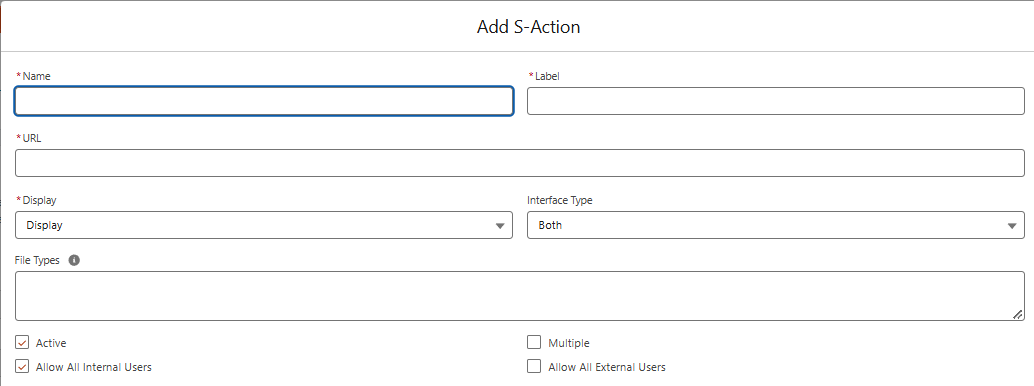
Name The action's internal name, with no spaces or special characters. For example: deployToWebsite. It's passed to the action when it runs, so use the name your developer expects.
Label The name users see in the action menu and the toolbar S-Actions button. For example: Deploy To Website.
URL Where the action's code lives. The format depends on what your developer built. If your org has no namespace prefix, use c.
|
Built as |
URL format |
Example |
|---|---|---|
|
Visualforce page |
|
|
|
Static resource script |
|
|
|
Lightning component |
|
|
|
Web page (redirect) |
The full web address |
|
Display How the action runs and what the user sees. Choose the type your developer built the action for.
|
Display type |
What the user sees |
|---|---|
|
Hidden |
Nothing while it runs. The action works in the background, then shows a message when it's done. Good for one-click jobs. |
|
Display |
The action's page opens inside the S-Drive component. The user clicks Back to return to the file list. |
|
Redirect |
The action's page or web address opens in a new browser tab. |
|
Lightning Component |
The action's Lightning component opens inside the S-Drive component. |
Active When unchecked, the action doesn't appear in the action menu.
Multiple Whether the action can run on more than one file at a time. Only actions that allow multiple files appear on the toolbar S-Actions button. Single-file actions appear only in each file's action menu.
File Types Limits the action to certain file types. Enter file extensions separated by commas, and use folder for folders. For example: jpg,png,gif,folder. Leave it blank to show the action for all file types and folders.
Allow All Internal Users Checked by default. All internal users can use the action, if they have permission for the SDriveCustomAction object.
Allow All External Users Unchecked by default. All external users can use the action, if they have permission for the SDriveCustomAction object.
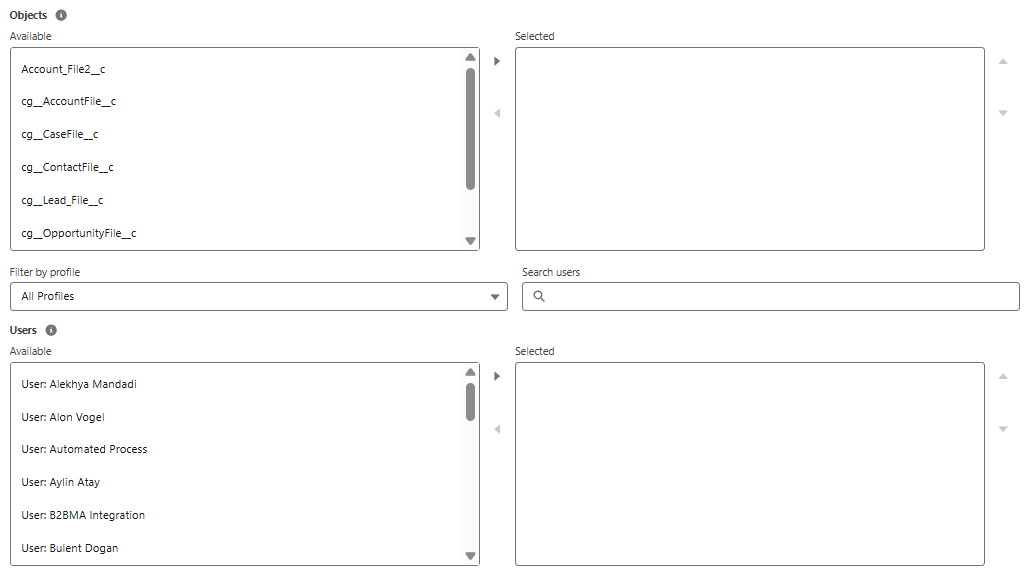
Objects Limits the action to certain file objects. Leave it blank to show the action on all file objects.
Users To limit the action to specific users, leave Allow All Internal Users and Allow All External Users unchecked and choose users here. Search by profile or name, move the users to Selected Users, and click Save. Users also need permission for the SDriveCustomAction object.
Learn about this feature: S-Actions (Custom Actions)