
S-Actions let you add your own custom actions to the S-Drive action menu. Each S-Action runs custom code your developer has written, such as a Visualforce page, Lightning component, or static resource script, on the files a user selects.
When to use it
-
Add a one-click action for something your team does often with files, like sending them to another system or updating fields on them.
-
Open a custom page or component for selected files from inside S-Drive.
-
Send users to an outside web page with the selected files.
How it works
A developer writes the code for the action. An admin then adds it as an S-Action in S-Drive Configuration, gives it a label, and chooses who can use it and where it appears.
The action appears in the action menu for files on the objects and file types you chose.
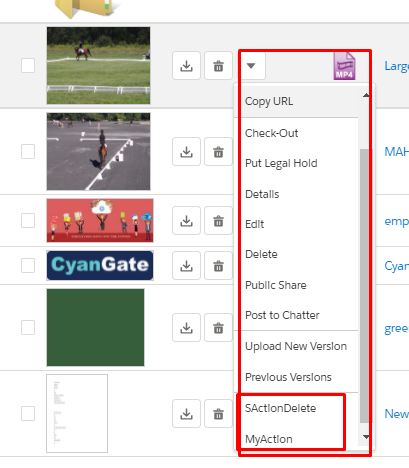
If the action works on multiple files, it also appears on the toolbar S-Actions button.
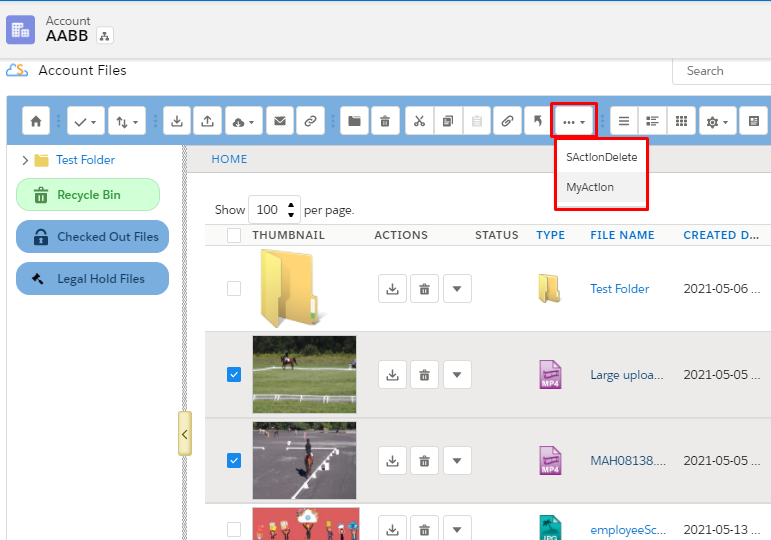

When a user runs the action, S-Drive passes the selected files and the action name to the custom code. What the user sees next depends on the action's display type:
-
Hidden: the action runs in the background and shows a message when it's done.
-
Display or Lightning Component: the action opens inside the S-Drive component, and the user clicks Back to return to the file list.
-
Redirect: the action opens in a new browser tab.
Using S-Actions
-
Select one or more files in the S-Drive component.
-
Choose the action from a file's action menu, or from the toolbar S-Actions button for multiple files.
Set it up
Before you start
-
A developer must write the Visualforce page, Lightning component, static resource script, or web page the action runs. You'll need its name or URL, the action name it expects, and the display type it was built for.
-
Users who run S-Actions need permission for the SDriveCustomAction object.
Setup checklist
-
Give users profile or permission set access to the SDriveCustomAction object.
-
Make sure users can see the S-Action record: set the organization-wide default for SDriveCustomAction to Public Read, or share the records with them using a sharing rule.
-
Add the S-Action in Services › S-Action, and choose which users, file types, and objects it's available for.