
Choose which objects sync Salesforce Files and Attachments to S-Drive, whether the originals are deleted after syncing, how email files are handled, and sync files that were uploaded before you turned sync on. To learn how File/Attachment Sync works and what else it needs, see File Sync/Attachment Sync.
Getting here: App Launcher › S-Drive Configuration › Services › File/Attachment Sync › Configure
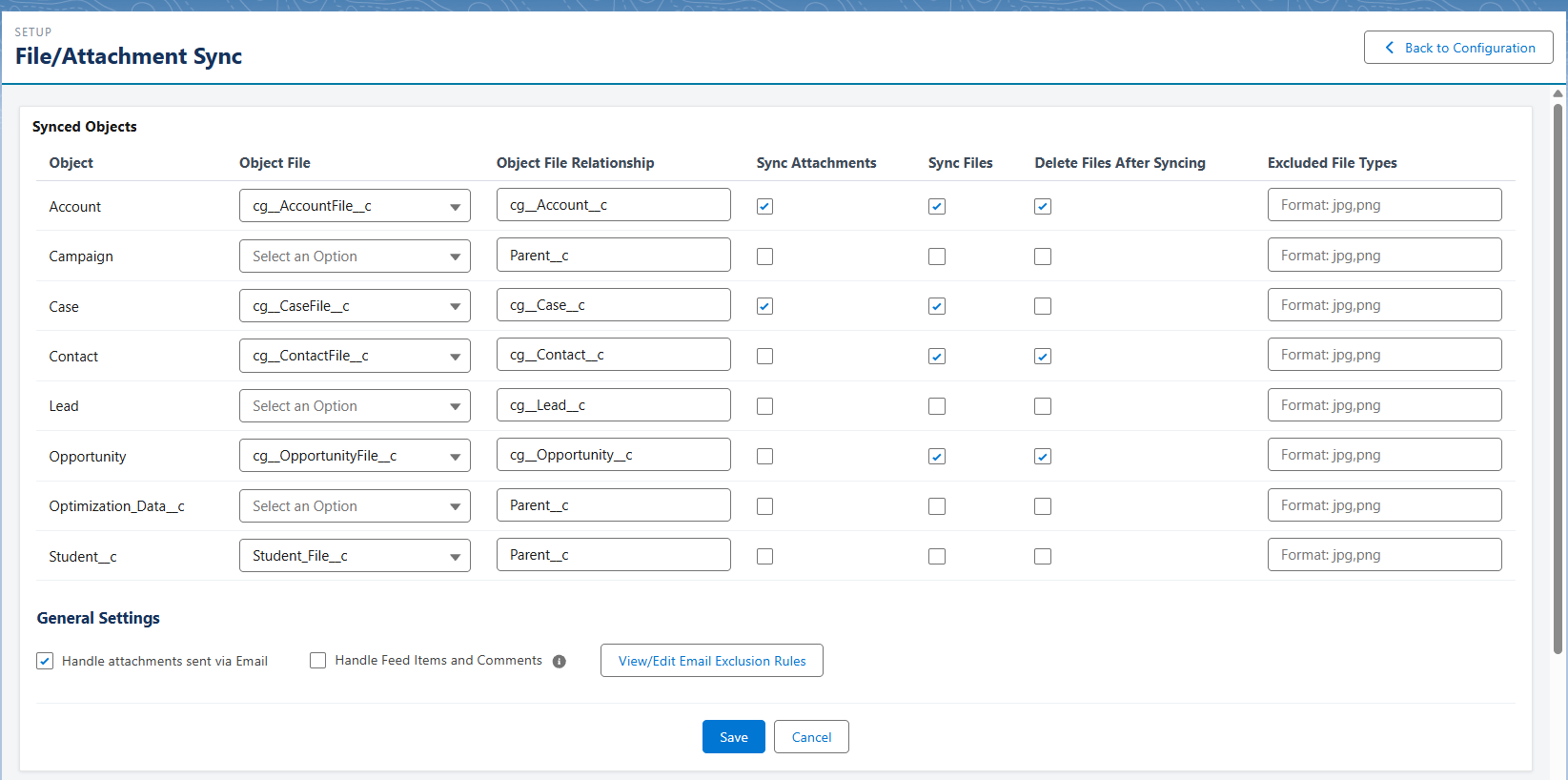
Setup Overview
These are the steps at a glance. Each setting is explained in Settings Details.
-
Open the File/Attachment Sync configuration page (see above).
-
Under Synced Objects Settings, for each object you want to sync:
-
Choose the Object File.
-
Enter the Object File Relationship.
-
Check Sync Files, Sync Attachments, or both.
-
Optional: check Delete Files After Syncing, and list any Excluded File Types for Delete After Sync.
-
-
Under General Settings, choose how to handle email files and Chatter posts.
-
Click Save.
-
Optional: to sync files that were uploaded before sync was set up, use Configure File Sync of Pre-existing Files.
File/Attachment Sync also needs permissions and an outbound message user set up in Salesforce. See Set it up on the feature page.
Settings Details
Synced Objects Settings
There is one row for each S-Drive object. Fill in the row for each object you want to sync.
Object File The S-Drive file object that synced files are saved to. There's usually only one choice.
Object File Relationship
-
The API name of the field on the S-Drive file object that relates to the parent object.
-
For the S-Drive file objects that come with S-Drive:
cg__Account__c,cg__Case__c,cg__Contact__c,cg__Lead__c,cg__Opportunity__c. -
For S-Drive file objects you created, it's normally
Parent__c.
Sync Attachments and Sync Files Choose whether to sync Salesforce Files, Attachments, or both for the object. Attachments are normally only used in Salesforce Classic.
Delete Files After Syncing Deletes the Salesforce File after it's synced to S-Drive.
Behavior of “Delete Files After Syncing”
The Salesforce file will be deleted from the record it’s synced to.
It will also be deleted completely from Salesforce, saving storage, except in the following circumstances:
-
If the file is shared to records on other objects, but not configured to sync, the file will remain on those records and not be deleted from Salesforce.
-
If the file is shared to Chatter groups, it will not be deleted from Salesforce.
If the file is shared with other users or came from an email, but is not shared to other records or groups, it will be completely deleted from Salesforce.
Excluded File Types for Delete After Sync Files only. File types listed here are synced but not deleted after syncing.
General Settings
Handle Email Files/Attachments Choose whether to sync files attached to incoming emails.
Email Sync Exclusion Rules Rules for email attachments that shouldn't be synced. Useful for skipping small images in email signatures.
Handle Feed Items and Contents
Update Feed posts/comments containing files to declare that the file has been synced to S-Drive for files that are deleted after syncing
-
When a file attached to a Chatter post is synced and then deleted, enabling this setting adds a message to the post saying the file was moved to S-Drive. Without it, the file just disappears from the post.
-
Requires the S-Drive Portal User to have the Modify All Data permission. Salesforce requires it for querying Feed Comments.
Sync Status
Shows the number of syncs that failed and the number in progress.
File Sync and Attachment Sync use the AttachmentSync object. AttachmentSync records are created and then deleted once the sync is complete.
If you have failed or hung AttachmentSync records and you delete them manually while Delete Files After Syncing is checked, you may lose files that were not yet synced to S-Drive. If you want to delete old AttachmentSync records, first uncheck Delete Files After Syncing.
Configure File Sync of Pre-existing Files
Sync only picks up files uploaded after it's set up. To sync files that were already in Salesforce before that, check the box next to each object you want to process.
Learn about this feature: File Sync/Attachment Sync