
Choose a plan for Content Authoring and Desktop Experience, and choose which users can use them. To learn what these features do, see Content Authoring with Microsoft Office and Desktop Experience.
Getting here: App Launcher › S-Drive Configuration › Services › Content Authoring - Desktop Experience › Configure
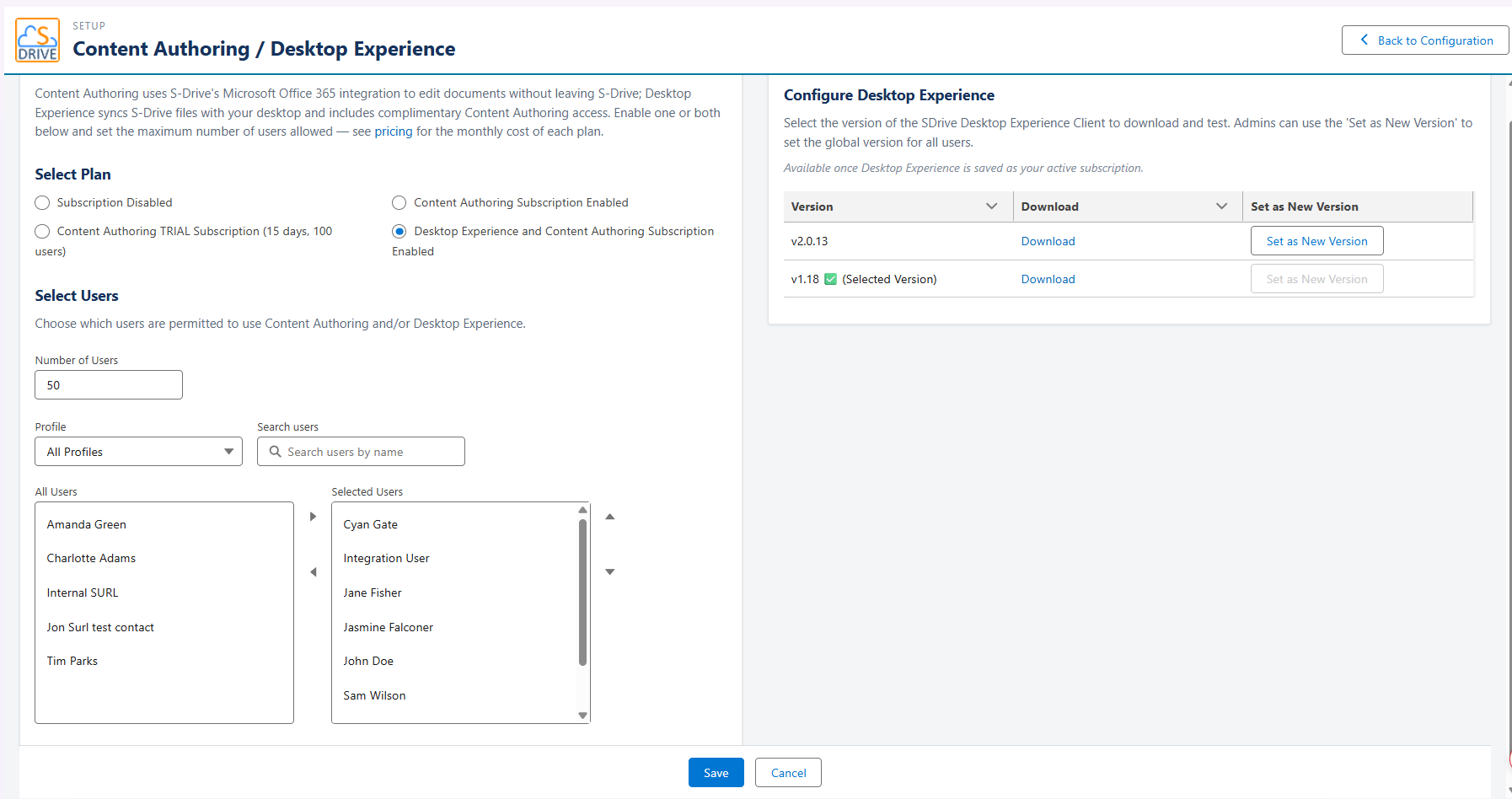
Setup Overview
-
Open the Content Authoring / Desktop Experience page (see above).
-
Under Select Plan, choose a plan.
-
Under Select Users, enter the Number of Users.
-
Move the users who should have access from All Users to Selected Users. Use Profile and Search users to find them.
-
Click Save.
Settings Details
Select Plan
|
Plan |
What it does |
|---|---|
|
Subscription Disabled |
Turns off Content Authoring and Desktop Experience. |
|
Content Authoring Subscription Enabled |
Turns on Content Authoring. |
|
Content Authoring TRIAL Subscription (15 days, 100 users) |
Turns on a free Content Authoring trial for 15 days, for up to 100 users. |
|
Desktop Experience and Content Authoring Subscription Enabled |
Turns on Desktop Experience. Content Authoring is included at no extra cost. |
For monthly costs, see S-Drive pricing.
Select Users
Number of Users The maximum number of users who can use Content Authoring or Desktop Experience. For more than 100 users, contact S-Drive Sales.
Profile and Search users Filter the list of users by profile and/or search by name.
All Users and Selected Users Only users in Selected Users can use Content Authoring or Desktop Experience.
Configure Desktop Experience
Download the latest version to your desktop to test. When you're ready, set it as the new version. Users are upgraded automatically the next time they log in to Desktop Experience.
Learn about these features: Content Authoring with Microsoft Office, Desktop Experience