
Content Authoring lets users edit Microsoft Word, Excel and PowerPoint files right from S-Drive, without downloading, editing and re-uploading them.
Content Authoring is a paid feature. See S-Drive pricing for rates. A free 15-day trial for up to 100 users is available. Content Authoring is also included with Desktop Experience.
When to use it
-
Users make quick edits to Office documents and don't want to download and re-upload them.
-
You want every edit saved as a new version in S-Drive automatically.
How it works
Files open in Office for the web. Changes save automatically as the user edits, and when they're done, the file is saved to S-Drive as a new version.
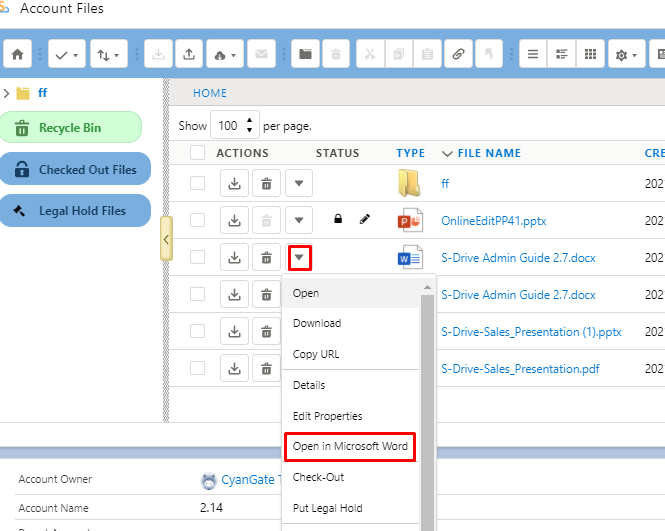
While a file is being edited, it's locked. The Status column shows a lock icon and a pencil icon, and hovering over the pencil shows who is editing the file.
What about security?
Microsoft Office Integration uses Web Application Open Platform Interface (WOPI) to manage request between S-Drive and Office Online.
-
Files are always kept in Amazon S3.
-
Only the file content is shared with Office Online via the WOPI.
-
Office Online has no information about where the file is stored
-
Office Online does not have any permission to change the files in S3.
-
Files are never saved to Office Online servers. Just a temporary copy of the file is kept throughout the editing session
-
Once the editing session is complete, WOPI uploads the updated file to S3 and the file is saved to S-Drive as a new version.
What kinds of files can use this feature?
|
Document |
file type |
Can be edited? |
|---|---|---|
|
Word Documents up to 100 MB |
.doc, .docx |
✅ |
|
Power Point slides up to 100 MB |
.ppt, .pptx |
✅ |
|
Excel sheets up to 100 MB |
.xls, .xlsx |
✅ |
|
Files in S-Drive recycle Bin |
|
❌ |
|
Locked files (checked out or currently being edited online) |
|
❌ |
|
Files accessed via a public share link |
|
❌ |
|
Shortcut files |
|
❌ |
Using Content Authoring
-
Click the down arrow in the action menu next to a Word, Excel or PowerPoint file.
-
Choose the option to open the file in Microsoft Word, Excel or PowerPoint.
-
Edit the file. Changes save automatically, and the file is saved to S-Drive as a new version when you're done.
Set it up
Before you start
-
Your bucket must be versioned.
-
Users need a Microsoft Office 365 account with an "Office for the web" license. This can be a shared account or their own.
-
Users must use Lightning Experience.
Setup checklist
-
Turn on versioning. See Managing your Buckets.
-
Add
https://wopi.sdriveapp.comto your Remote Site Settings:-
In Setup, go to Remote Site Settings and click New Remote Site.
-
Give the setting a name.
-
Enter
https://wopi.sdriveapp.comfor the URL. -
Click Save.
-
-
Choose a plan and select users in Services › Content Authoring - Desktop Experience.
-
Turn on Online Editing in the S-Drive component: edit the Lightning page in Lightning App Builder, click the S-Drive component, check Online Editing, and save the page.
-
To use it on the S-Drive tab, turn on Enable Online Editing in S-Drive Tab Settings.
Limitations and notes
-
Lightning Experience only. Not available in the Salesforce mobile app.
-
Files up to 100 MB can be edited.
-
If some users work in both Lightning and Classic, a file locked for editing in Lightning may not show as locked in Classic.
-
Office for the web optimizes images, so a file may be smaller after editing than the original.