
Preview and Thumbnail creates page previews and a thumbnail image for S-Drive files. Users can page through a document, or play a video, without opening or downloading it.
Preview and Thumbnail is a paid feature. See S-Drive pricing for conversion rates. Previews and thumbnails also use additional AWS S3 storage.
When to use it
-
Users need to check a file's contents without downloading it.
-
Users find files faster by seeing them, for example images or design files.
How it works
When a file is uploaded to an object with Preview and Thumbnail turned on, and its file type is allowed, S-Drive generates a thumbnail and previews of its pages. They're stored in your S3 bucket. You choose which objects and file types get previews, and how many pages are converted.
Files that were already in S-Drive before you turned it on don't get previews automatically. You can generate them in bulk from the settings page.
Using Preview and Thumbnail
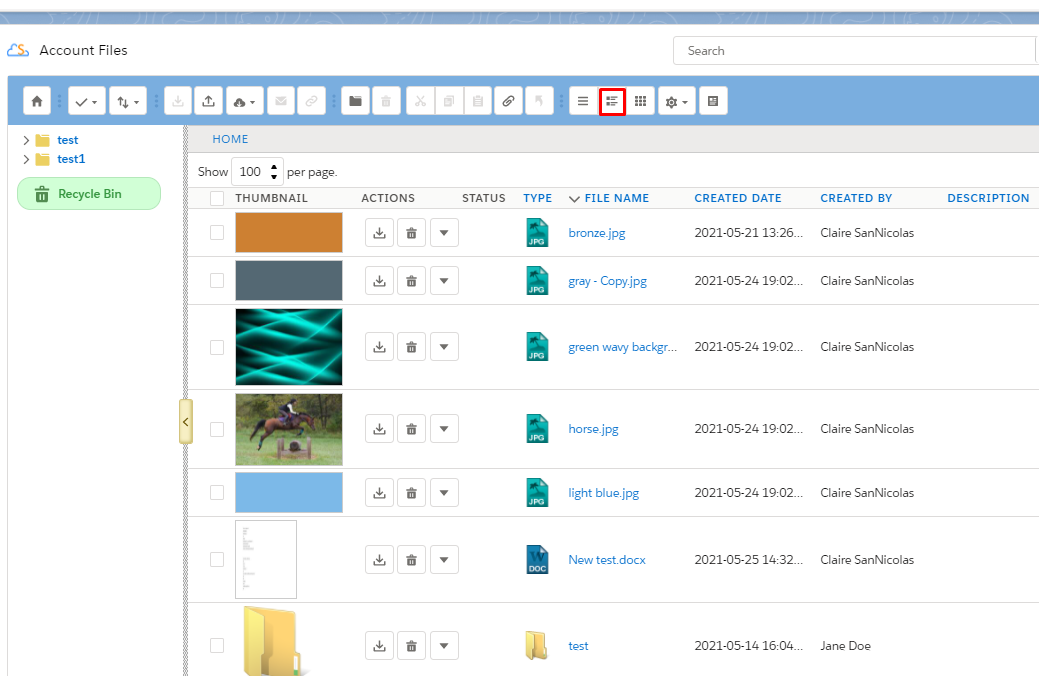
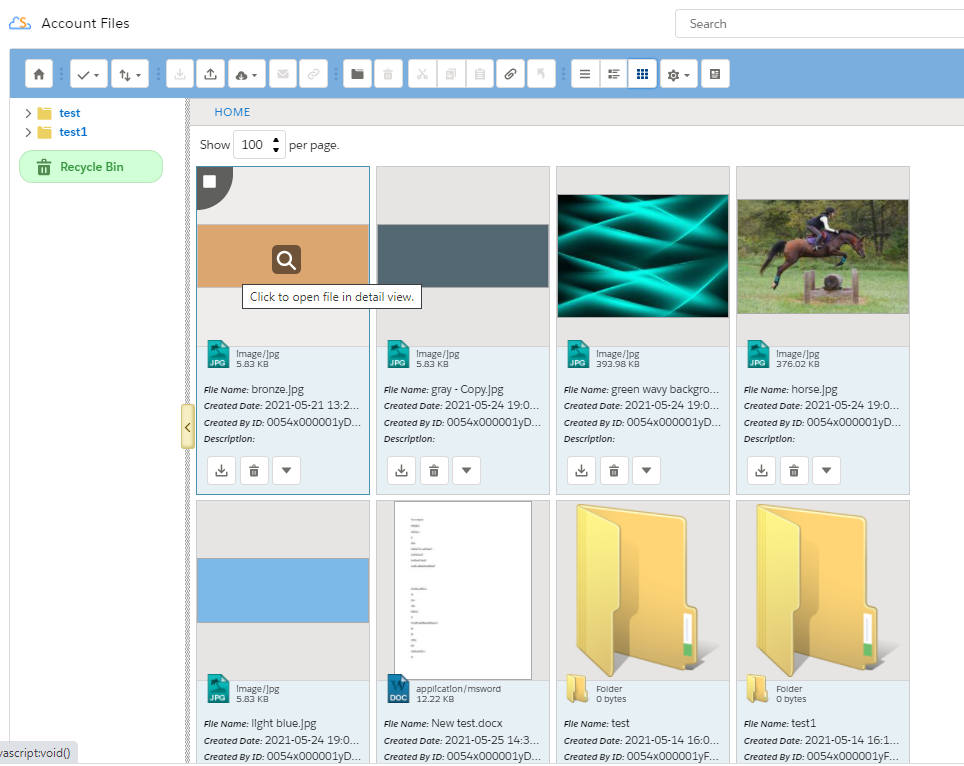
Thumbnails appear in the S-Drive component in Thumbnail View (left) or Grid View (right).
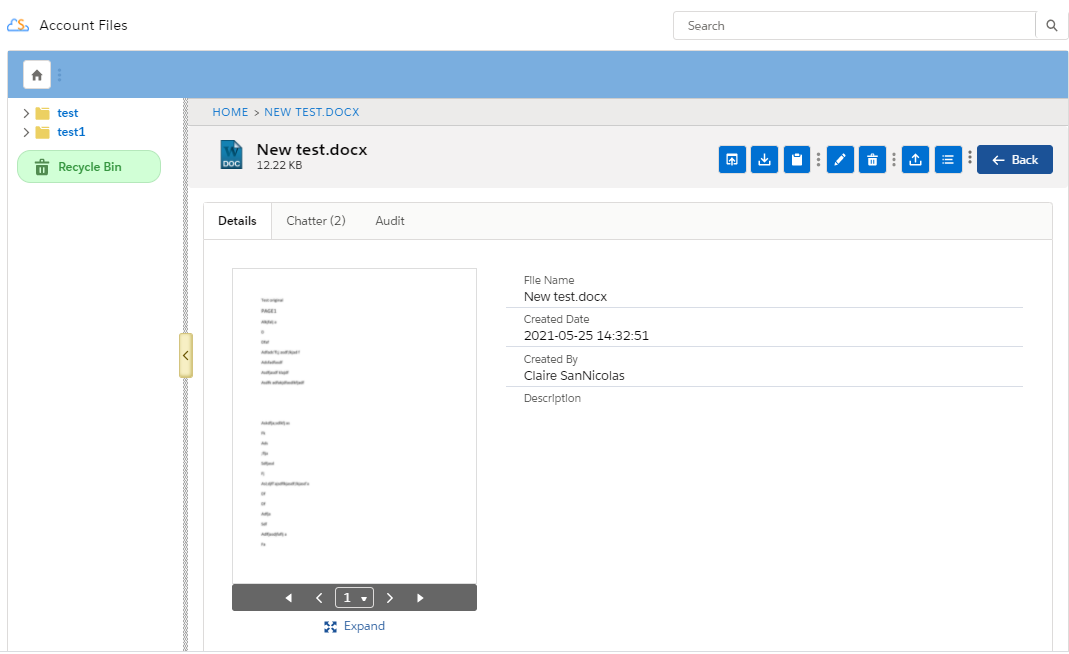
Previews appear on the file's detail page. Users can page through the document without opening or downloading it, and play video files.
Set it up
Before you start
Preview and Thumbnail uses a callout to generate previews, so the outbound message user and uploading users need the right permissions.
Users who upload files must have:
-
Preview object permission (read/create/edit + field accessibility)
-
SQueue object permission, which is used to delete preview pages when a file is deleted
-
Send Outbound Messages permission
Outbound message user. In Setup › Outbound Messages (under Workflow Actions), check the following items. Preview Callout is the one Preview and Thumbnail uses, but check the others as well.
-
AttachmentSync
-
FileSync Callout
-
Preview Callout
-
FileSizeRequest Callout
The user to send as must be an active user. No specific permissions are needed.
Setup checklist
-
Check the outbound message user and its permissions (see Before you start).
-
Give users who upload files the Preview, SQueue, and Send Outbound Messages permissions.
-
Turn on Preview and Thumbnail for each object, and choose file types and page counts, in Services › Preview and Thumbnail.
-
Optional: generate previews for existing files in Generate Preview and Thumbnail of Pre-existing Attachments.
Limitations and notes
-
Previews and thumbnails use additional AWS S3 storage.
-
Only the number of pages you set get previews.