
S-Actions allow customers to develop their custom code on VF Pages, Lightning Components or Static Resources Scripts and these code blocks can be embedded in S-Drive component as S-Actions.
S-Drive identifies your VF Pages, Static Resource Scripts or Lightning Component via S-Action definitions. S-Drive can import your custom action code blocks to S-Drive component in 4 different types which are Hidden, Display, Redirect or Lightning Component.
According to your S-Action definition, it is added on related objects Action Menus
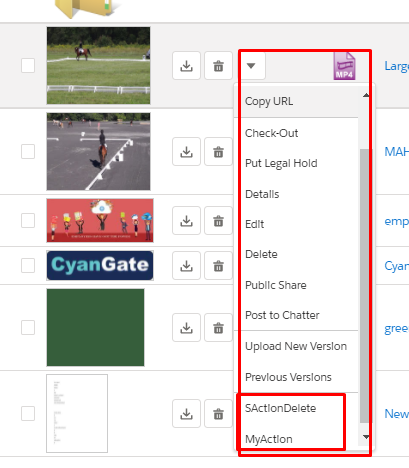
and Toolbar S-Actions button as an option if configured for Multiple files.
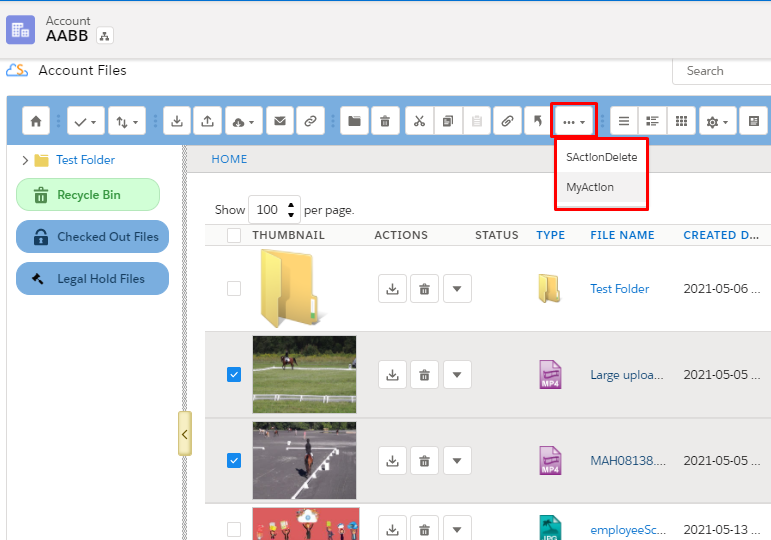
When a custom action is selected from the menu, S-Drive runs your code blocks sending selected files id list with action name as parameters. After action is done, S-Drive inform users about action status.
Going Back to the file list when your S-Action is complete
For S-Actions that are Lightning Components, you can trigger the “Back” button to return to the file list by referring to our Back event in your js code.
-
To include the Back button in your component
-
<aura:registerEvent name="back" type="cg:back"/>
-
-
To fire the back button event in your js code
-
var eventAction = component.getEvent("back");
eventAction.fire();
-
In order for a user to access an S-Action:
-
User needs profile permission for SDriveCustomAction
-
OWD for SDriveCustomAction is “public read” or a sharing rule is in place to share SDriveCustomActions with the user
-
Either All Internal Users (or All External Users) checkbox is checked or the user is on the list of Selected Users
To configure S-Actions, see S-Action (Free).