
S-Drive’s E-Signature feature allows you to send an S-Drive document directly to DocuSign* and have the signed document returned directly to S-Drive.
To Configure E-Signature Integration
-
Go to S-Drive Configuration -> Services tab.
-
Find E-Signature Integration and click Configure.
This will take you to the Configure E-Signature Integrations page
Configure E-Signature Integrations
The E-Signature feature works with DocuSign.
-
Click the DocuSign radio button to enable it.
-
Check the boxes next to the objects you wish to enable for E-Signature.
-
In the “Signed Document Location” column, choose where you want the returned signed document to appear.
-
Upload as New Version - uploads the signed document as a new version of the original file
-
Upload to Same Directory - uploads the signed document to the same folder as the original file
-
Upload to Root Directory - uploads the singed document to the root/home directory
-
-
Click Save
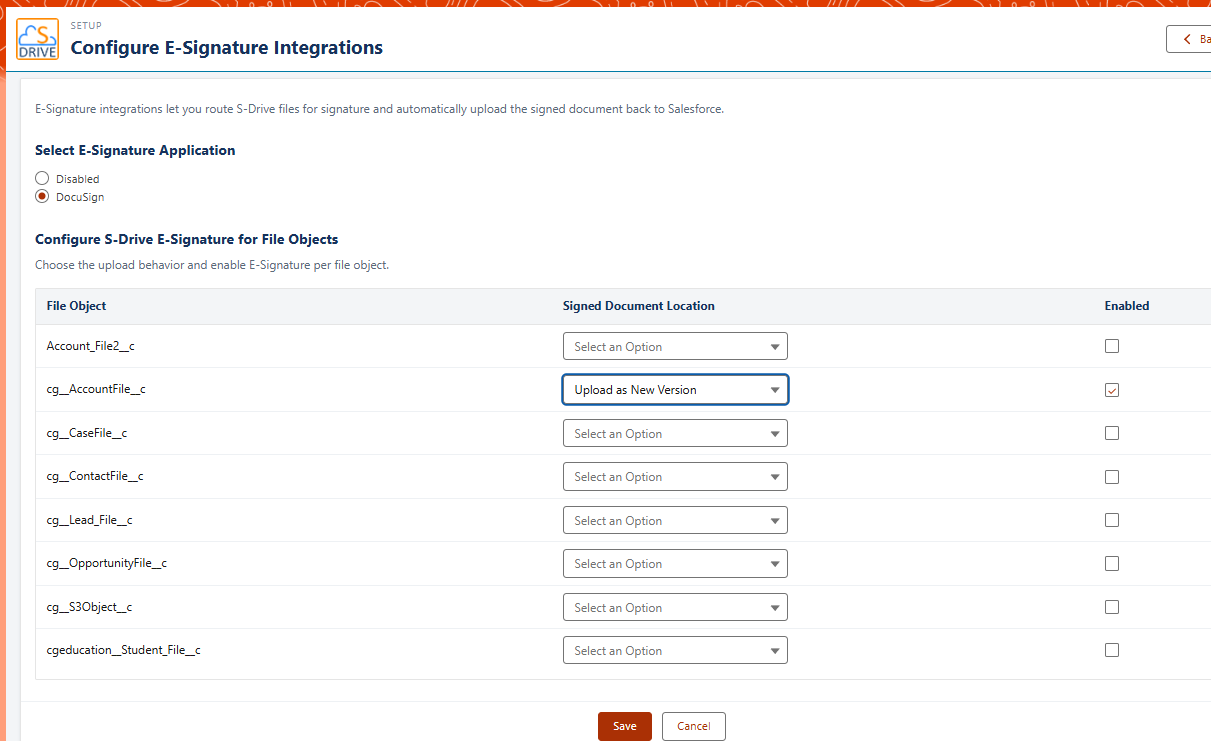
If you choose Upload as New Version, your bucket must be versioned. See Managing Your Buckets for instructions to enable versioning.
Once configured, files on the chosen objects will have a new action: Send for E-Signature.
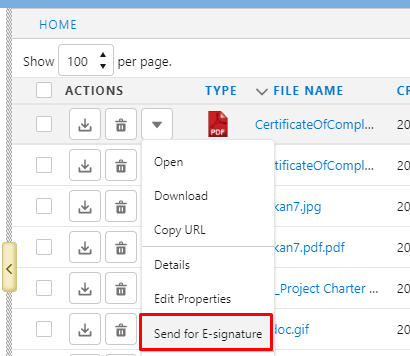
Clicking on Send for E-Signature will take you to DocuSign to complete any additional steps that may be needed based on your DocuSign setup.
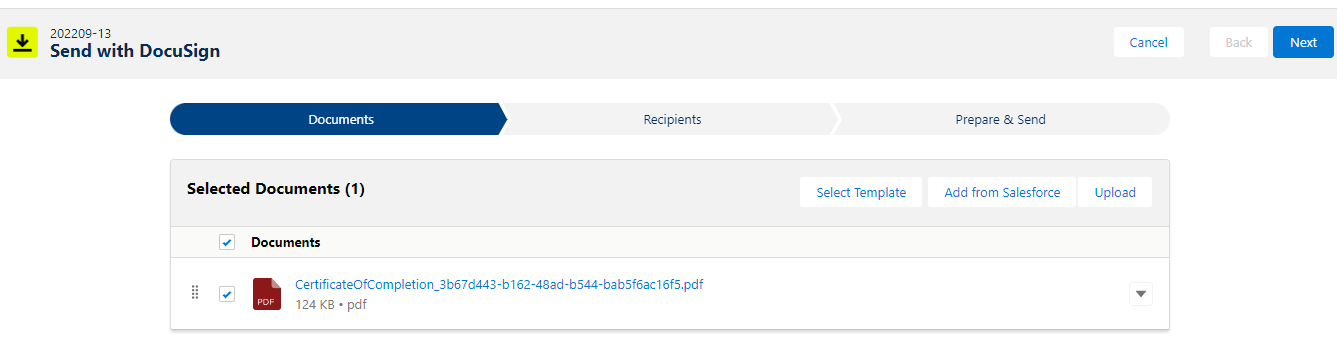
*Requires separate installation of DocuSign eSignature for Salesforce, found on AppExchange. . More E-Signature integration coming in the future.
DocuFetch E-Signature Application
E-Signature can also be used with S-Drive’s DocuFetch feature, but that is not configured on this page. DocuFetch E-Signature works with either AdobeSign or Formstack.
See DocuFetch Configuration for more information.