
Records Management (RM) is a micro service offered by S-Drive at $500/month. The usage is prorated and rounded up to the nearest hour. With RM, you can apply retention policies to your files, have file check-in & check-out functionality, and put your files under legal hold.
To enable Records Management
-
Go to S-Drive Configuration->Services
-
Click “Configure” next to Records Management to open the configuration page
Configure Records Management page
Records Management
-
Click Enable Records Management (or Enable Records Management Trial)
-
the other sections will then become active
-
The Remove Locks for All File Objects button is used to unlock all locked files. This needs to be done if you want to disable Records Management.
Check-In & Check-Out
This allows you to "check-out" a file, which locks it, preventing others from deleting or modifying the file, and when you're finished with the document, you can "check-in" the file. Check-In & Check-Out comes with 2 sub configurations:
-
If you would like to have your browser auto-download the file once "Check-Out" button is clicked, "Enable Auto-Download After Check-Out" as well.
-
If you would like to have a pop-up window that asks "Would you like to upload a new version to this file" once "Check-In" button is clicked, "Enable Check-In Redirect To Upload Page" as well.
If you would like to disable Check-In & Check-Out after enabling it, and currently have files checked out (locked), you can click "Remove Locks From All Checked Out Files" button. As the name suggests, clicking this button checks in (unlocks) every checked-out file. After that, you can uncheck the "Enable Check-In & Check-Out" checkbox and click "Save" to disable the feature. Please note that if you try to save this configuration while having checked-out files, you'll see an error message.
Please note that in order to enable Check-In & Check-Out, "Records Management" needs to be enabled beforehand. Records Management solution costs $500/month but it is prorated.
Once Check-in and Check-out is enabled, you will see options for check-in/check-out in the action menu for your files. See the S-Drive User's Guide for more information.
Legal Hold
Legal Hold functionality allows users with Remove Lock Permission to put files under legal hold, preventing others from deleting or modifying the file. Legal Hold is like check-in & check-out, the differences being
-
Only certain users with the specified permission can put files under legal hold, or remove files from legal hold
-
File objects available for legal hold must be explicitly selected from the configuration menu
-
Legal Hold is hierarchically above Check-In & Check-Out, i.e., a file under legal hold can't be checked-out but a checked-out file can be put under legal hold.
-
Files that are on Legal Hold will NOT be deleted at the end of a retention period unless criteria (Lock State equals legalHold) is set to include them in deletion.
If you would like to disable Legal Hold after enabling it, and currently have files on Legal Hold, you can click "Remove Locks From All Files Under Legal Hold" button. As the name suggests, clicking this button removes all files from legal hold. After that, you can uncheck the "Enable Legal Hold" checkbox and click "Save" to disable the feature. Please note that if you try to save this configuration while having files under legal hold, you'll see an error message.
Please note that in order to enable Legal Hold, "Records Management" needs to be enabled beforehand. Records Management solution costs $500/month but it is prorated.
Once Legal Hold is enabled, you will see options for Put Legal Hold/Remove Legal Hold in the action menu for your files. See the S-Drive User's Guide for more information.
Remove Lock Permission
Check-In & Check-Out and Legal Hold features incorporates a custom permission called "RemoveLockPermission" that must be created as follow:
-
Go to Setup->Custom Permissions and click new
-
Fill in the fields as shown and click Save
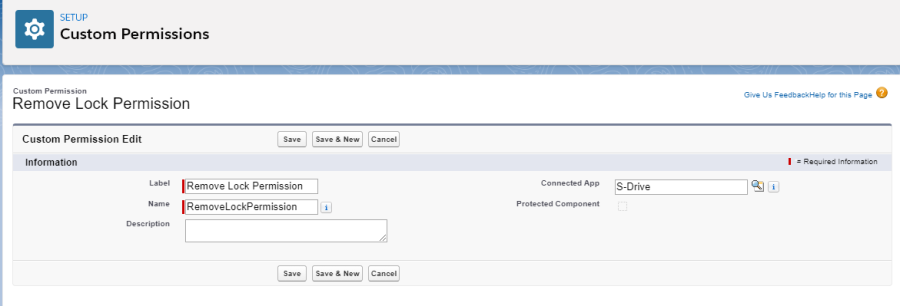
You can either add this permission to a permission set of your organization (which is then assigned to users/profiles) or enable it for a specific profile.
If a user has this permission, or if user is a System Administrator, locks can be removed by the user, independent of who put the lock in the first place. Otherwise, only the person who checked-out a file can check-in. Additionally, Legal Hold functionality is only available to holders of this custom permission and System Administrators.
If you would like to disable RM after enabling it, and have files locked either through Check-Out or Legal Hold, you can click "Remove Locks From All File Objects" button. As the name suggests, clicking this button removes locks of any kind (whether checked out or on legal hold) from all file objects. After that, you can uncheck the "Enable Records Management" checkbox and click "Save" to disable the feature. Please note that if you try to save this configuration while having checked-out files, or files under legal hold, you'll see an error message.
Retention Policy
Retention policies cause files that meet the configured criteria to be deleted from S-Drive storage at the specified time. Retention policies delete all existing versions of files covered in the policy.
Click "Add Retention Policy" manage retention polices. That will bring you to this screen.
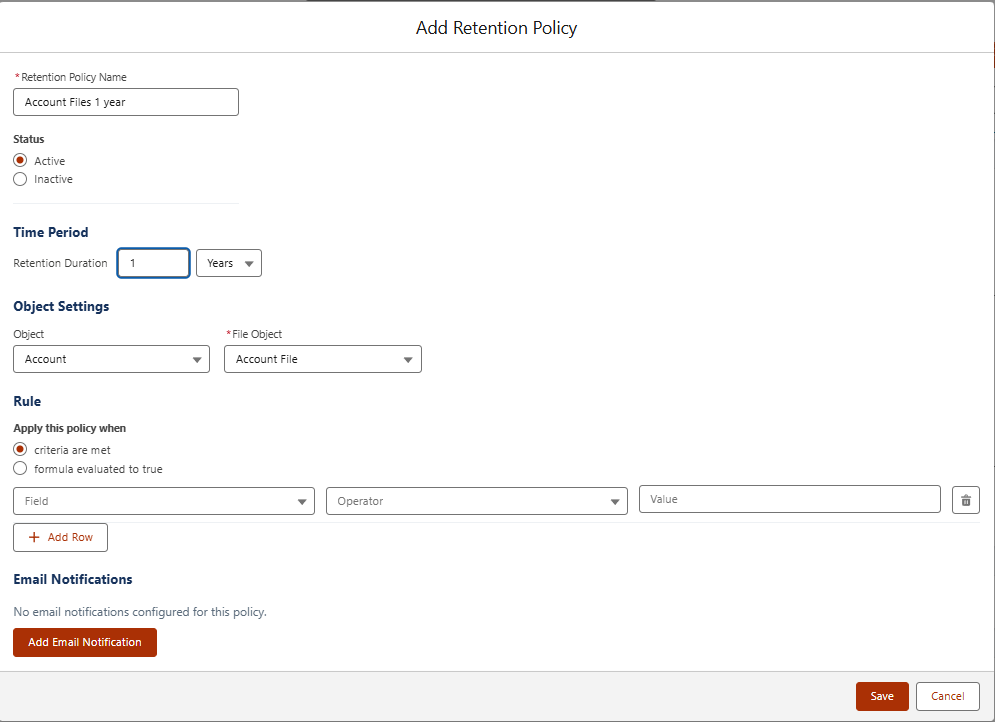
Name: name of the retention policy
Status: choose active or inactive
Time Period: how long you want files to be retained. This is based on the date the file was created. At the end of that period of time, they’ll be delated.
Object Settings: Choose the parent object and S-Drive File Object
Rule: Choose criteria or formula. If no criteria are added, all files meeting the time period will be deleted. If you want criteria based on another date, such as number of months a file has been in the S-Drive recycle bin, create a custom date field and use it in the rule as part of the criteria.
Add Email Notfication: You have an email sent before a file is deleted. You can configure how far in advance you’re notified.