
Preview and Thumbnail creates a preview of S-Drive files as well as a thumbnail that can be displayed on the S-Drive component. See Advanced Features: Preview and Thumbnail for more details.
To enable Preview & Thumbnail, go to S-Drive Configuration->Services and click “Configure” next to Preview & Thumbnail.
On the page that opens
-
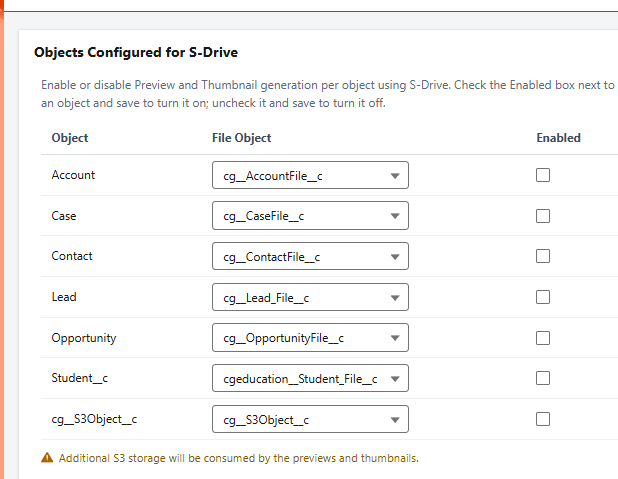
You can enable/disable preview and thumbnail per object.
-
You can enable/disable preview and thumbnail per file type.
-
You can monitor conversion status and retry failed conversions.
-
You can generate preview and thumbnail of pre-existing S-Drive Attachments.
Objects Configured for S-Drive
After a successful file upload, S-Drive can generate preview and thumbnail of your file, if this feature is enabled on your object and file types are configured.
File Types & Preview Pagination
You can choose which file types will be allowed for preview and thumbnail conversion and how many pages previews will be generated for.
-
Choose the object you want to configure from the Object dropdown
-
Under File Type Selection, choose which file types you want to have previews for
-
Under Pagination, enter the default number of pages. If you want to override this for a particular file type, enter the number of pages next to the corresponding file type.
-
For instance, the default maximum preview page count for the AccountFile object is set to 20, the file-level maximum page count is set to 10 for pdf. When previews are being generated for pdf files, the preview will be generated for the pages from 1 to 10. For the other file types of the AccountFile object, previews will be generated up to 20 pages.
-
Preview and Thumbnail Generation Status
In this section, you can monitor status of your preview and thumbnail conversions and retry failed ones
Generate Preview and Thumbnail of Pre-existing Attachments
If you have S-Drive Files that were uploaded before Preview & Thumbnail was enabled, then you can bulk generate preview and thumbnail of those files. First, you must enable preview and thumbnail on your object and. Then in this section, choose the objects you want to generate previews for. You can also put in a date range. If you have a lot of files to process, it’s best to do one object at a time and/or put a date range in.
In order to generate preview and thumbnail of a file.
-
Object must be preview and thumbnail enabled.
-
Type of attached file must be allowed for conversion on your object.
-
Users uploading files must have profile permission for the Preview object. They should also have permission for the SQueue object, which is used to delete preview pages when a file is deleted.
Important Note: Additional AWS S3 storage will be consumed by the previews and thumbnails. Also, you can check conversion pricing at https://www.sdriveapp.com/pricing/ .